Choose them at setup
During setup, tap Turn Accessibility features on to choose them before you start: Voice control, High contrast, Show screen tabs, Use phone's text size, Allow landscape and Messages stay up longer. Tap Done. You can change any of them later in Settings › Accessibility.
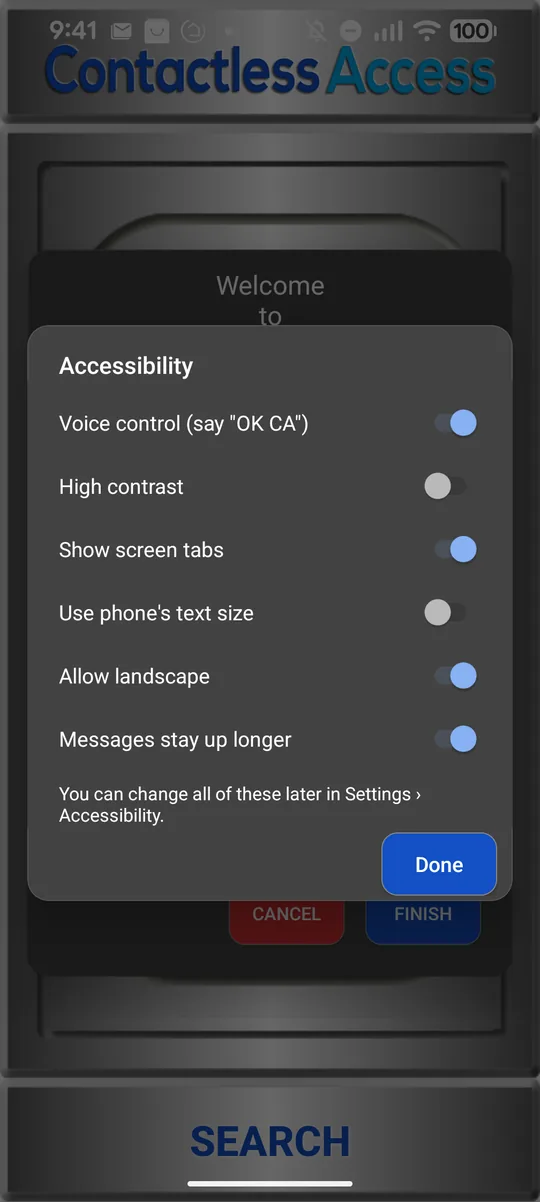
Choose, then tap Done
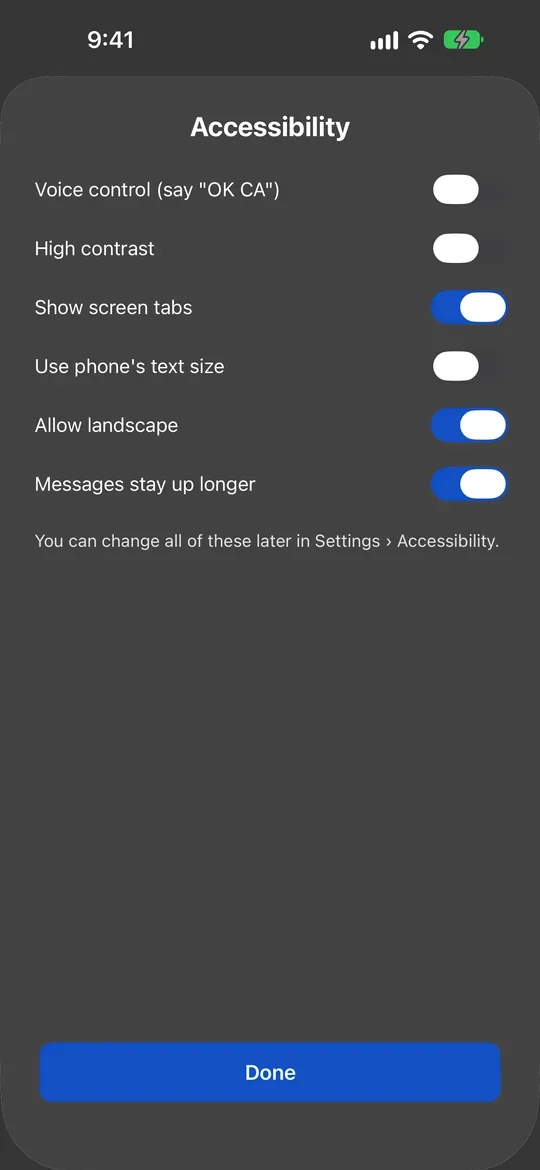
Choose, then tap Done
High contrast
In Settings › Accessibility, turn on High contrast for black-and-white buttons with bold outlines.
It turns on by itself when your phone's own setting is on: High contrast text on Android, Increase Contrast on iPhone. While the phone's setting is on, it stays on in CA Secure too.
Text size
Use phone's text size (on to start with) makes CA Secure's text follow your phone's text size. Turn it off to keep CA Secure's normal size.
Screen tabs
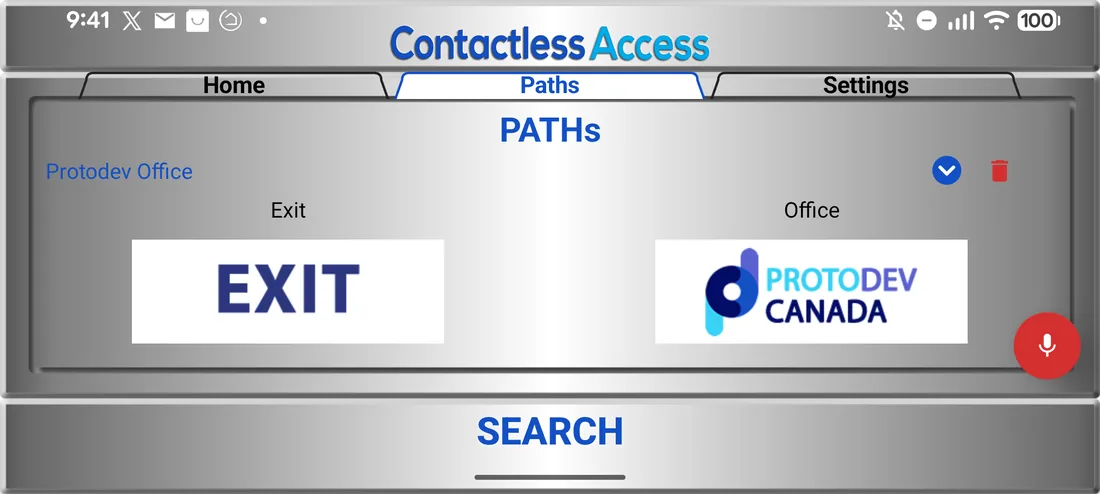
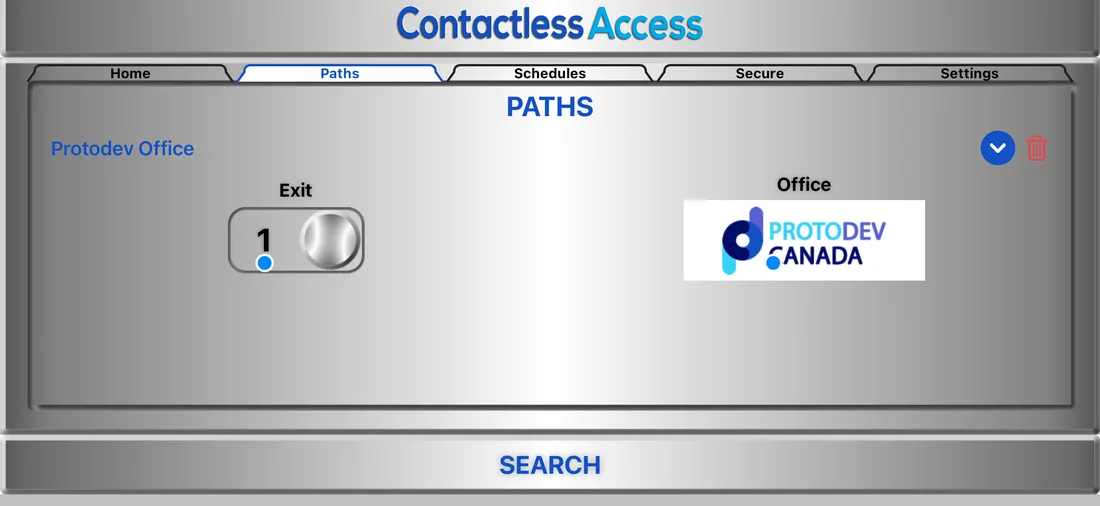
Show screen tabs puts a row of tabs at the top of every screen, each with a screen's name: one tap goes there.
Sideways
Turn on Allow landscape to use CA Secure with the phone on its side, for example in a phone holder. The screens turn with the phone.
Messages stay up longer
Short messages, such as Path saved, stay on the screen long enough to read. In Settings › Accessibility, Messages stay up sets how many seconds.
TalkBack and VoiceOver
- The top of the Home screen reads Contactless Access at and the place.
- When you press a button, CA Secure says its name and pressed, or not sent, try again.
- Buttons named Go to and a screen's name move between screens.
- On the Paths screen, double-tap a path to run it.
- TalkBack and VoiceOver read CA Secure in English for now.
- During setup, each step is read with where you are, for example “Step 2 of 5”.
Language
In Settings › Language, choose English, French or Spanish for the screens. Voice control, TalkBack and VoiceOver use English for now.
Still stuck?
In CA Secure, open Settings and tap Contact to send us a message, or email info@contactlessaccess.com.