
Make a path
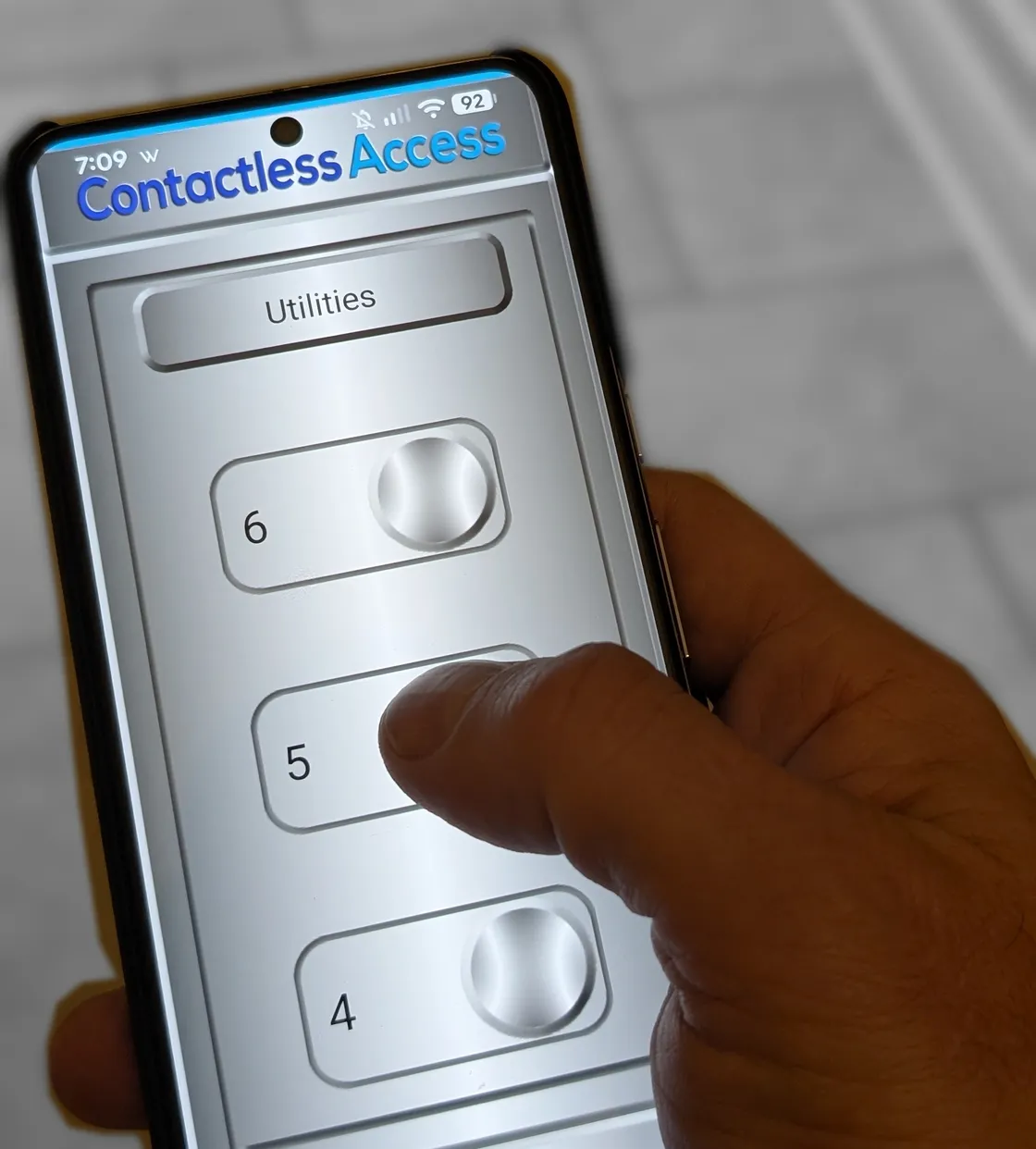
- Go inside the elevator with CA Secure open on the Home screen.
- Hold (long-press) the floor you want the path to go to.
- Give the path a name. On a campus, choose the Building.
- Tap Save. The path is now on the Paths screen.
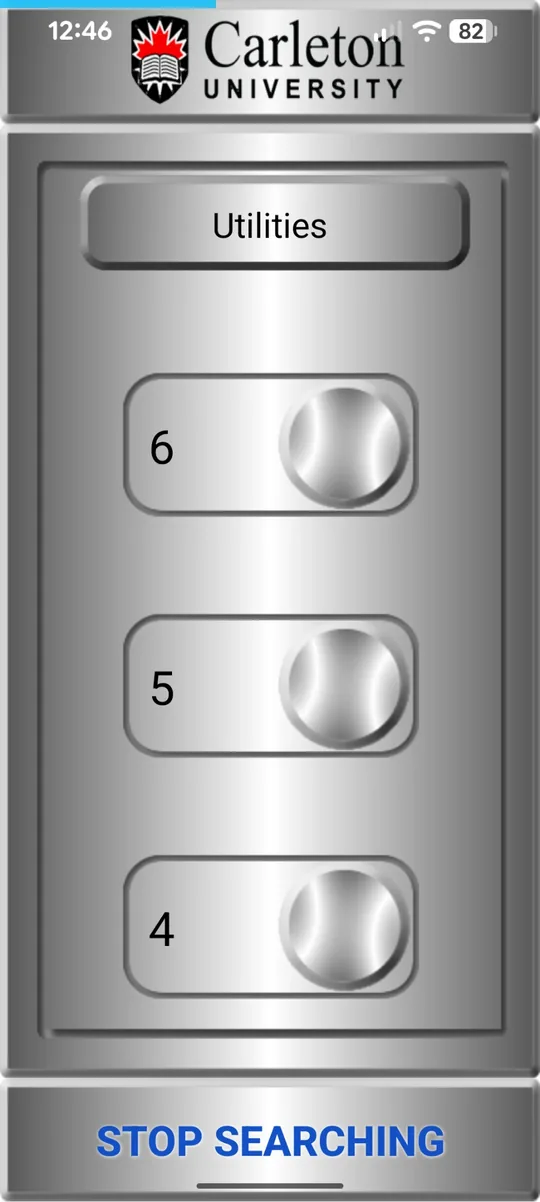
1. Hold the floor (here, 5) 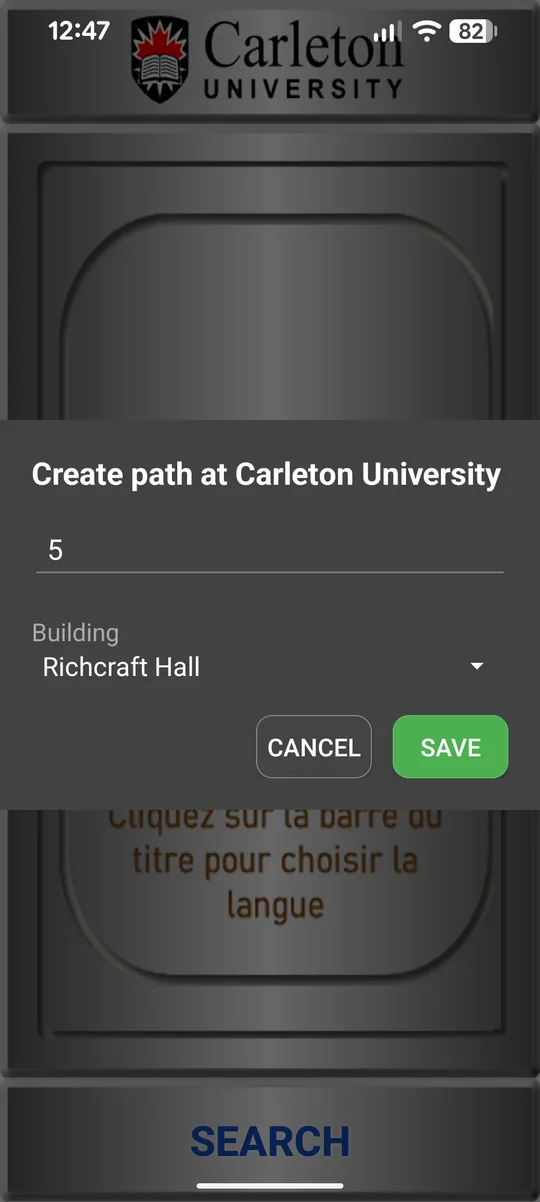
2. Name it, choose the building, Save 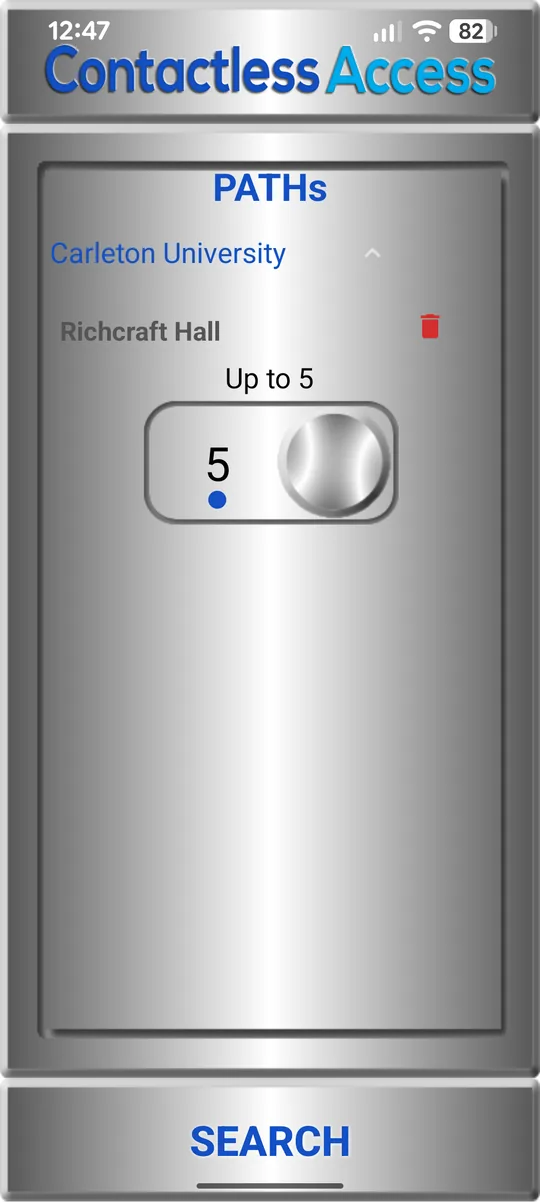
3. It's on the Paths screen
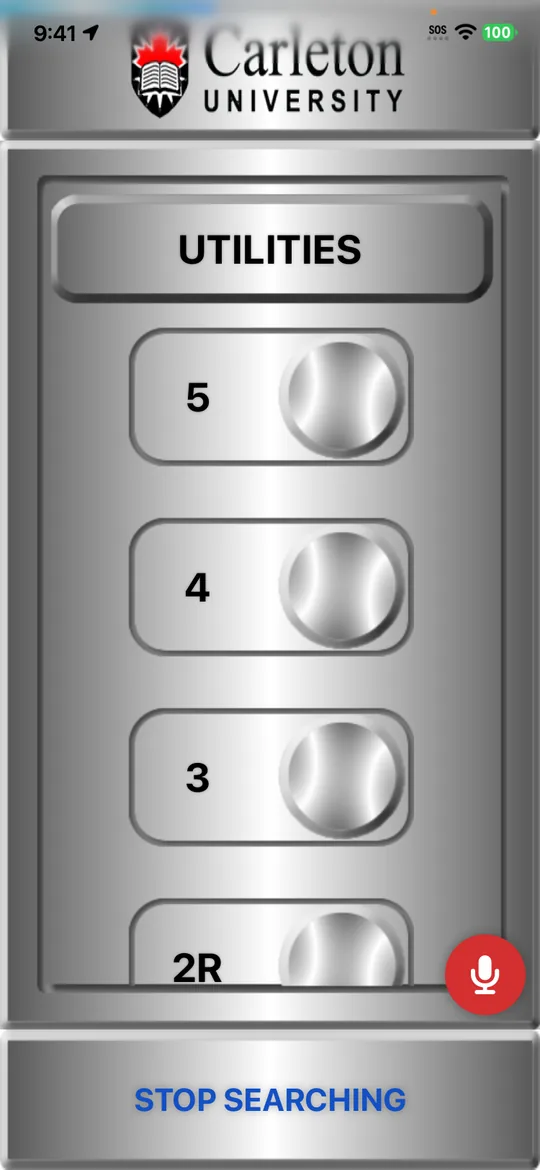
1. Hold the floor (here, 5) 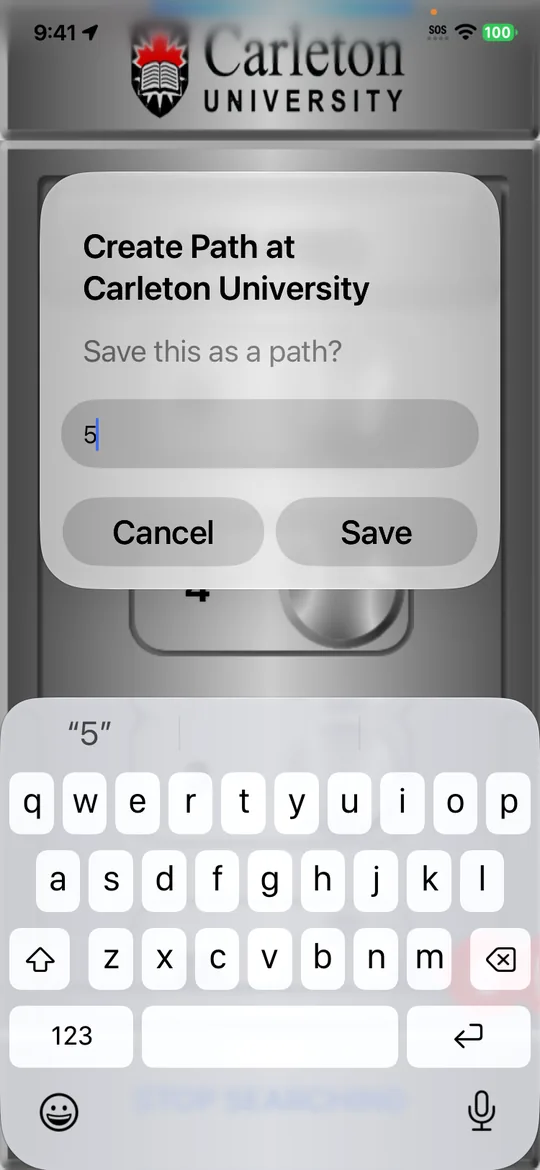
2. Name it, tap Save 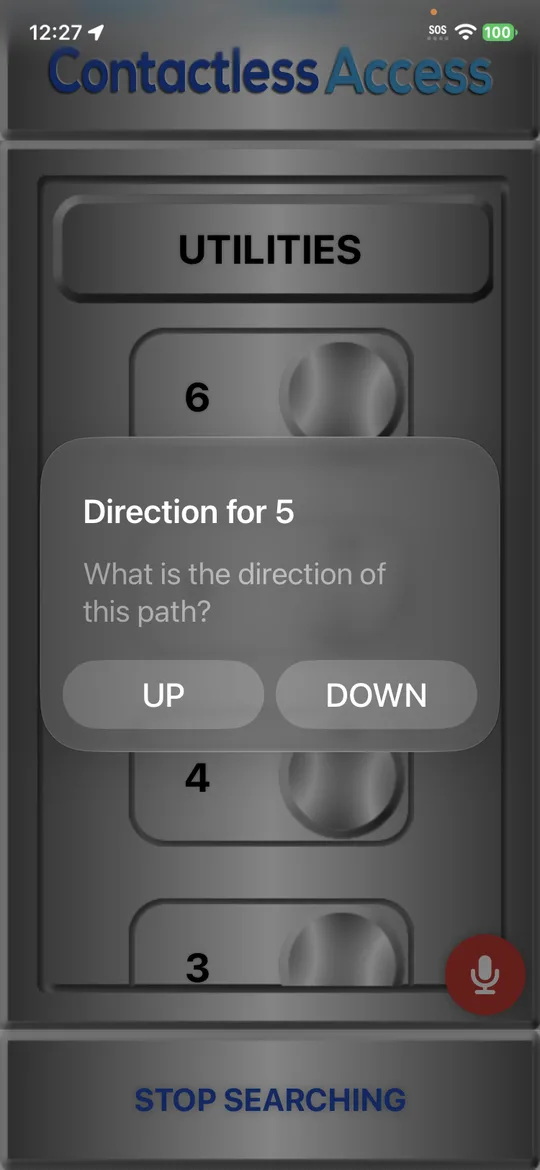
3. Choose UP or DOWN 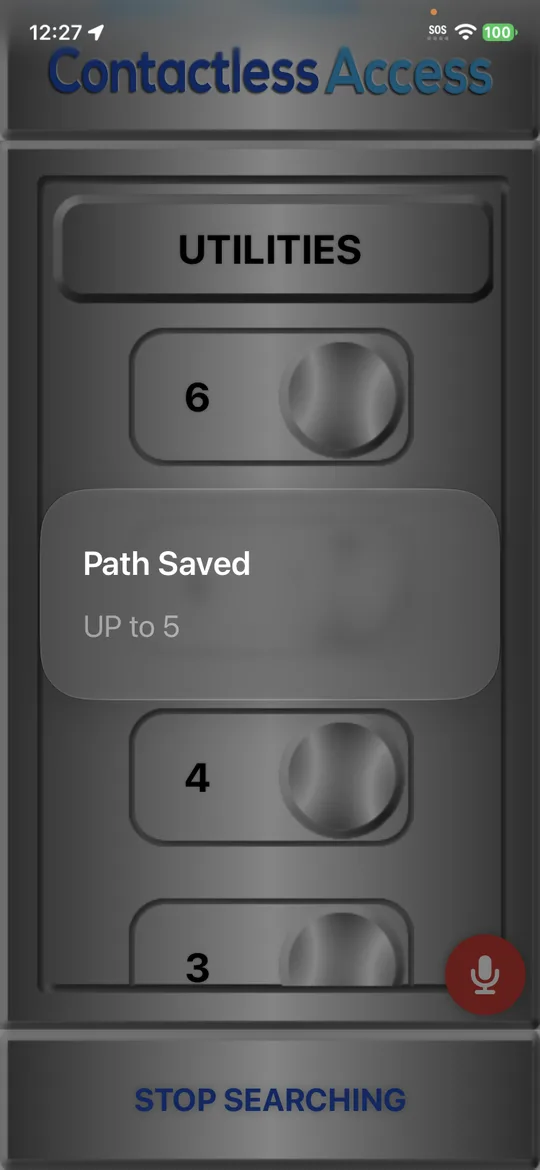
Path saved 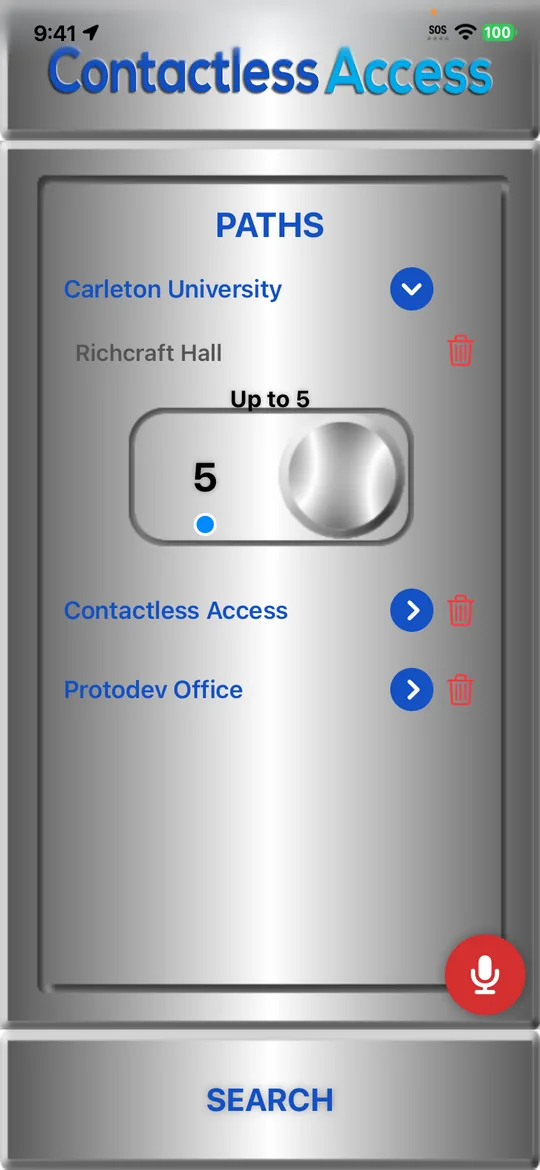
4. It's on the Paths screen
You can also say “OK CA, create path 5” (see Voice control).
Run a path
Swipe to the Paths screen and tap the path. A Running panel shows each step and the doors it found; tap Close when you're done. You can also start a path:
- from a home-screen widget;
- by voice: say “OK CA” and the path's name;
- automatically, when you arrive (below).
Path settings
Hold a path on the Paths screen to change it:
- Name and Building.
- Range: Closer or Farther, how near you need to be.
- Auto Doors: open the doors on the path as you reach them. A blue dot on the path's button shows Auto Doors is on.
- Auto-start when I arrive at this location: start the path when you get there. Only one path per place can do this; turning it on for one turns it off for the other.
- Secure doors: add secure doors you have access to.
- Share and Delete.
Tap Update to save your changes.
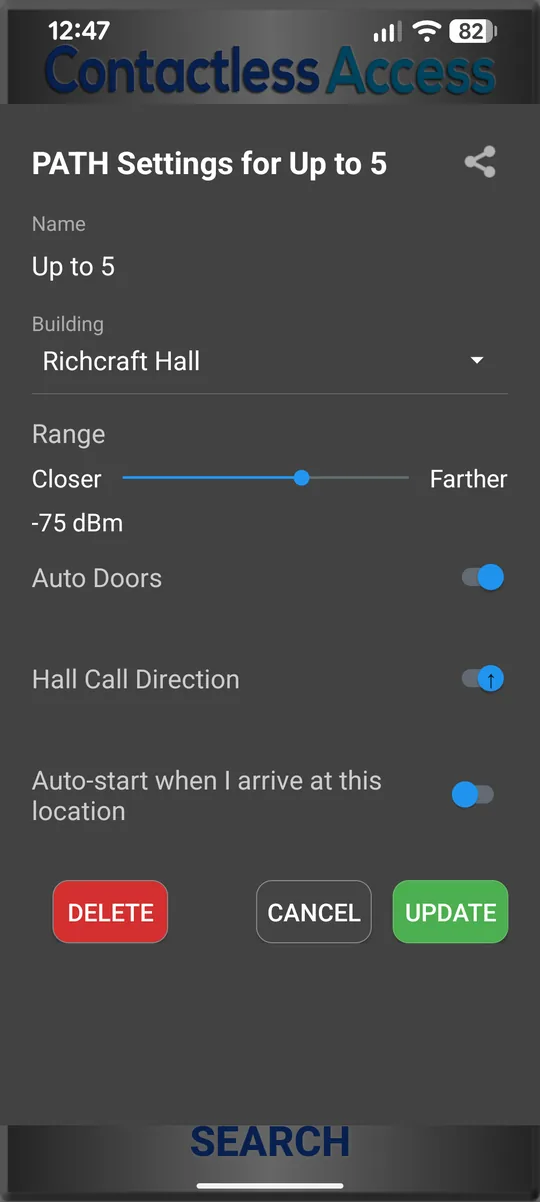
Path settings
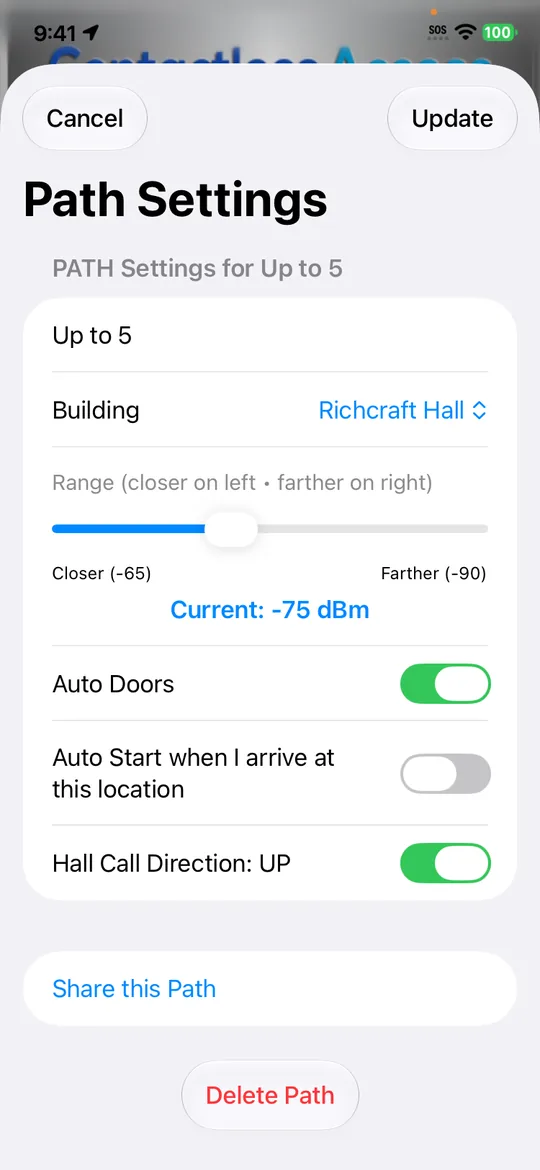
Path settings
Share a path
In the path's settings, tap the share button. Your phone's share sheet opens with a link to the path: send it by text, email or any app. When the other person taps the link, the path is added to their CA Secure.
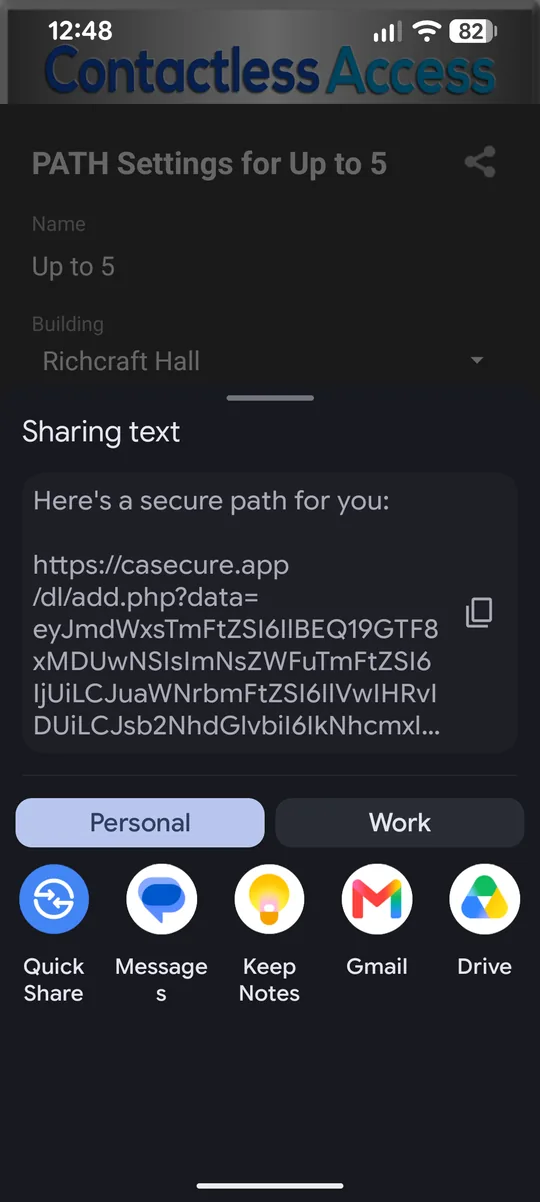
Send the link with any app
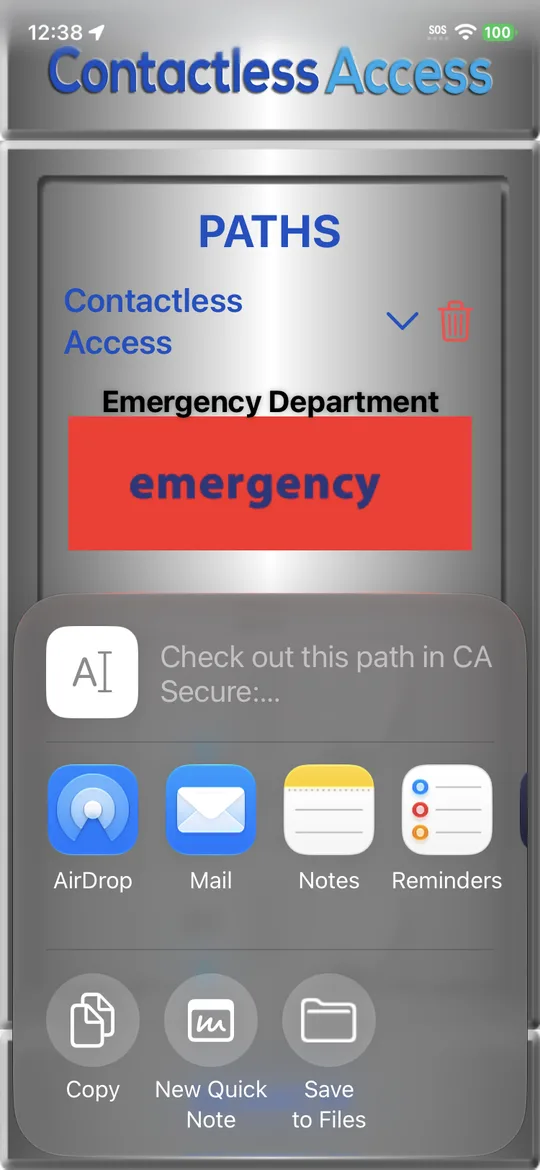
Send the link with any app
A building's own paths
Some buildings publish paths for visitors. CA Secure downloads them, with the building's logo, when you arrive. It needs location all the time, and the setting Auto-download paths and logos in Settings › Data Usage (on to start with).
Still stuck?
In CA Secure, open Settings and tap Contact to send us a message, or email info@contactlessaccess.com.