
Turn logging on or off
In Settings › Logging, the switch sends CA Secure's own log to us automatically. You chose this during setup (“Anonymous usage data”), and can change it any time.
Send your log now
In Settings › Logging, tap Send log. It works even with the switch off. You'll see Log sent, or a message to check your connection and try again.
What's in the log
- Which devices were seen, the buttons pressed, paths run, downloads, settings and errors, with your phone model.
- No location coordinates, and never what you say: only that a voice command was used.
- It's kept on your phone for 7 days.
Contact us
- In Settings, tap Contact.
- Fill in your name, email and message. You can add pictures, such as screenshots.
- Tap Send.
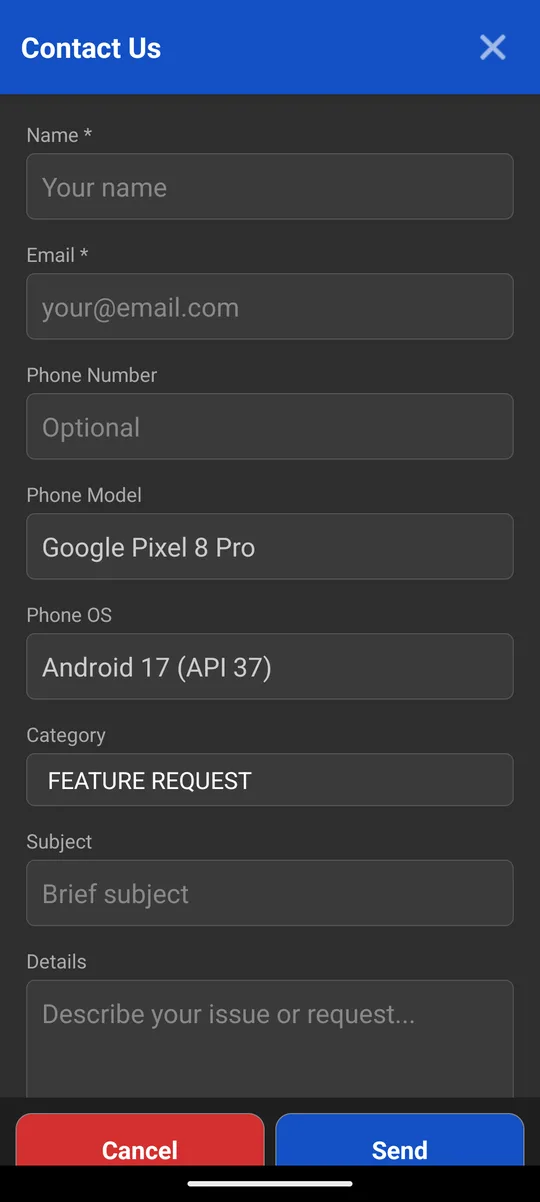
The Contact form
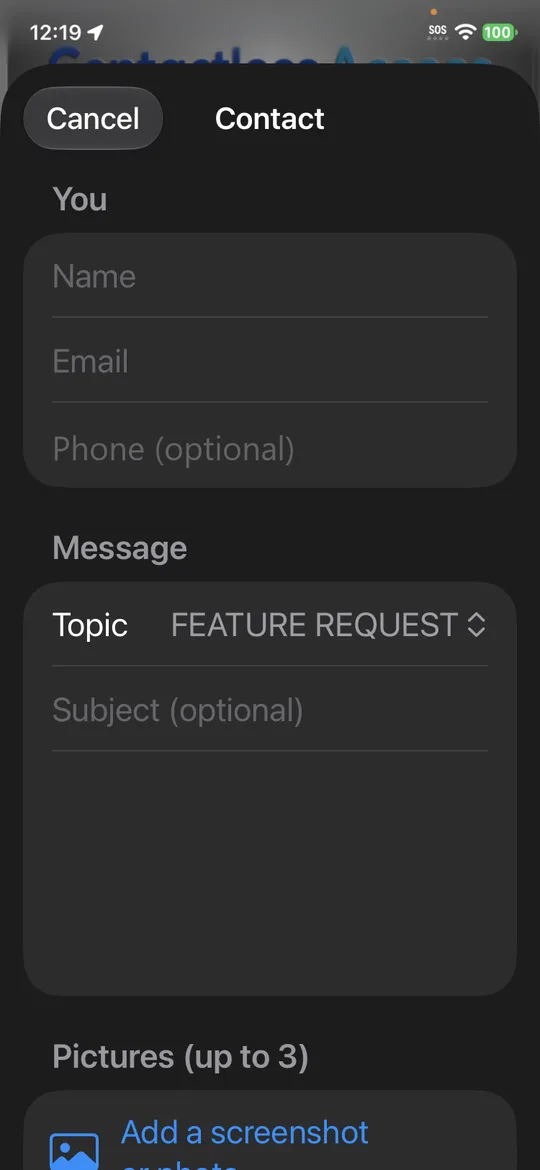
The Contact form 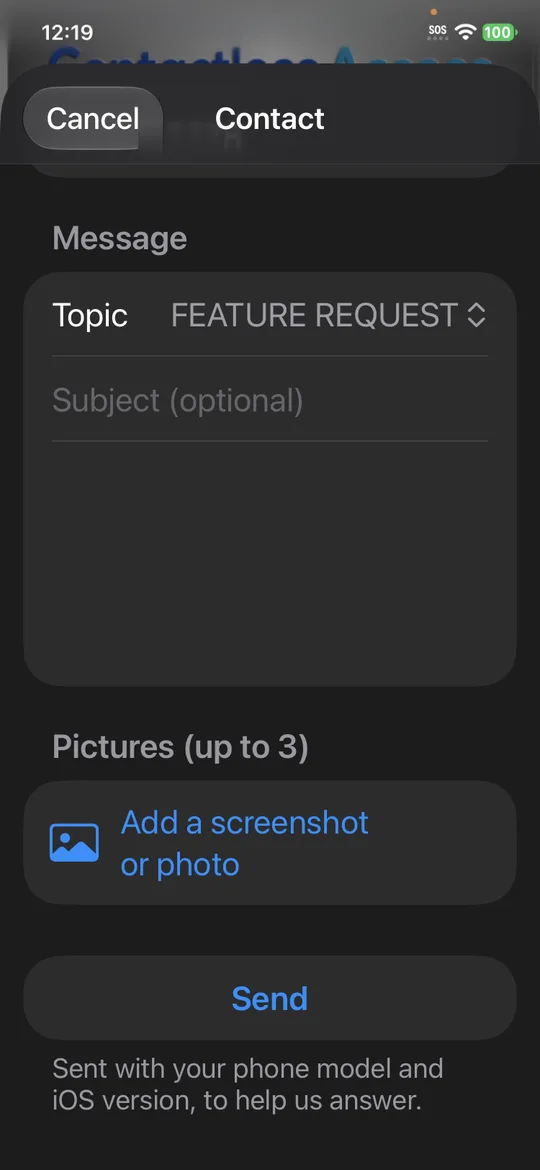
Add pictures, tap Send
Reporting a problem
Tap Send log first, then tell us in the Contact form what you were doing and roughly when. That lets us find it in the log.
You can also email info@contactlessaccess.com.
Still stuck?
In CA Secure, open Settings and tap Contact to send us a message, or email info@contactlessaccess.com.