
Turn on voice control
- Swipe to Settings and open Accessibility.
- Turn on Voice control.
- Allow the microphone, and speech recognition if your phone asks.
Below the switch, Listening window sets how long CA Secure listens after “OK CA”: from 6 to 30 seconds (6 to start with). Voice control uses more battery, so you can turn it off when you don't need it.
How to speak to it
- CA Secure listens while it's open on your screen, on the Home and Paths screens.
- Say “OK CA” (or “Hey CA”) and the command in one go, or say “OK CA”, wait for the beep, then the command.
- A microphone button shows on screen while voice control is on. It's red while listening; tap it to stop or start listening.
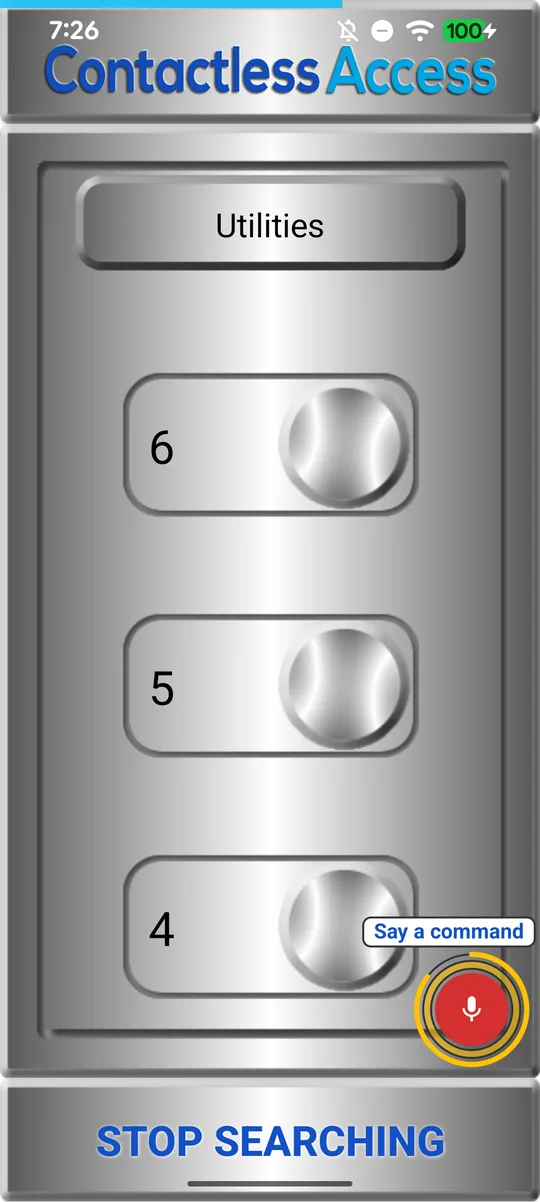
1. Say “OK CA”: it's listening 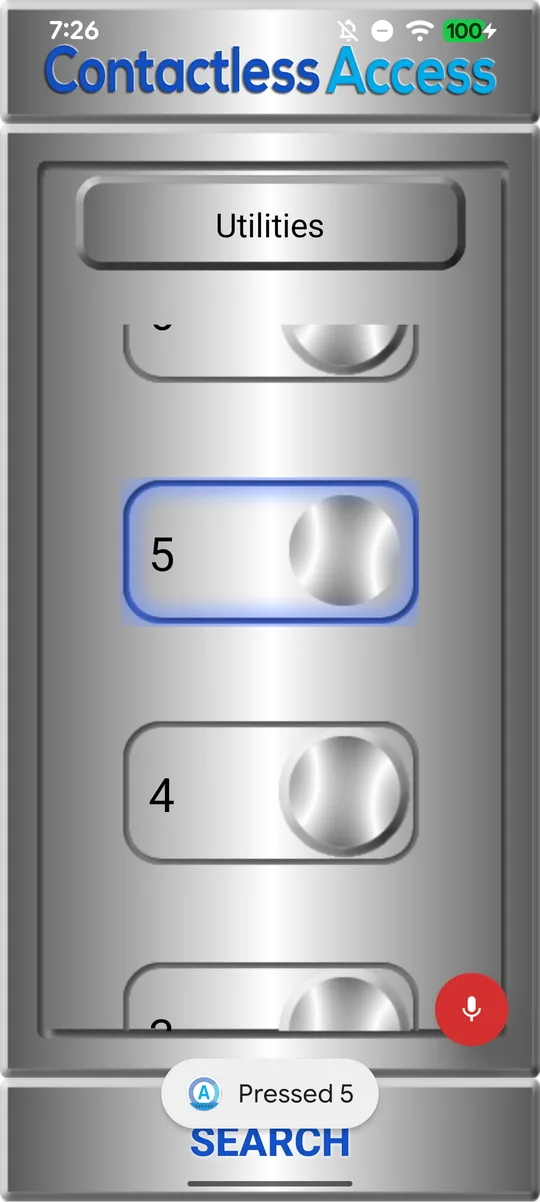
2. Say “5”: floor 5 is pressed
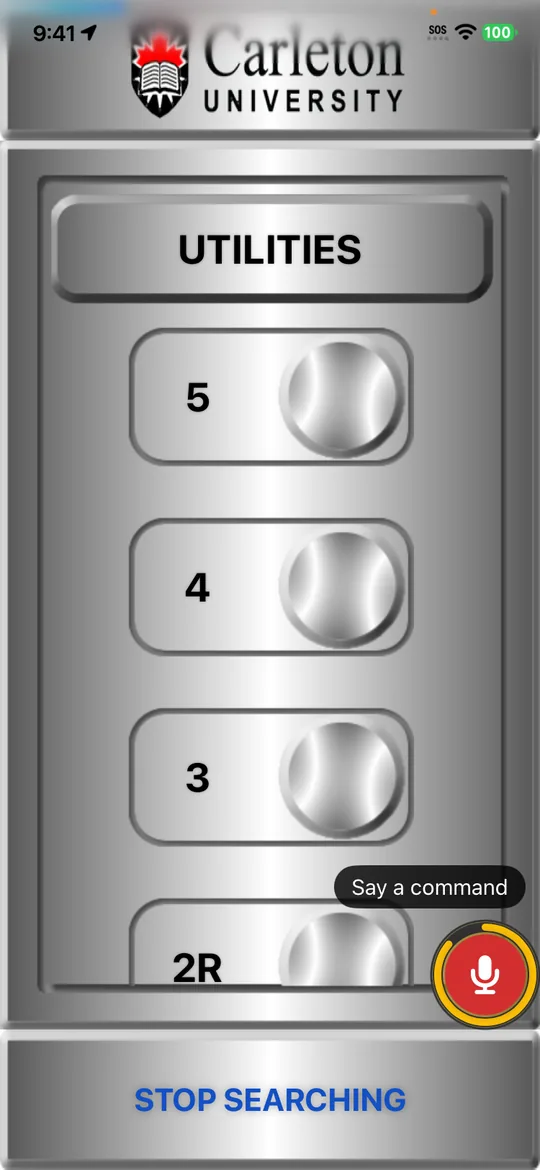
1. Say “OK CA” 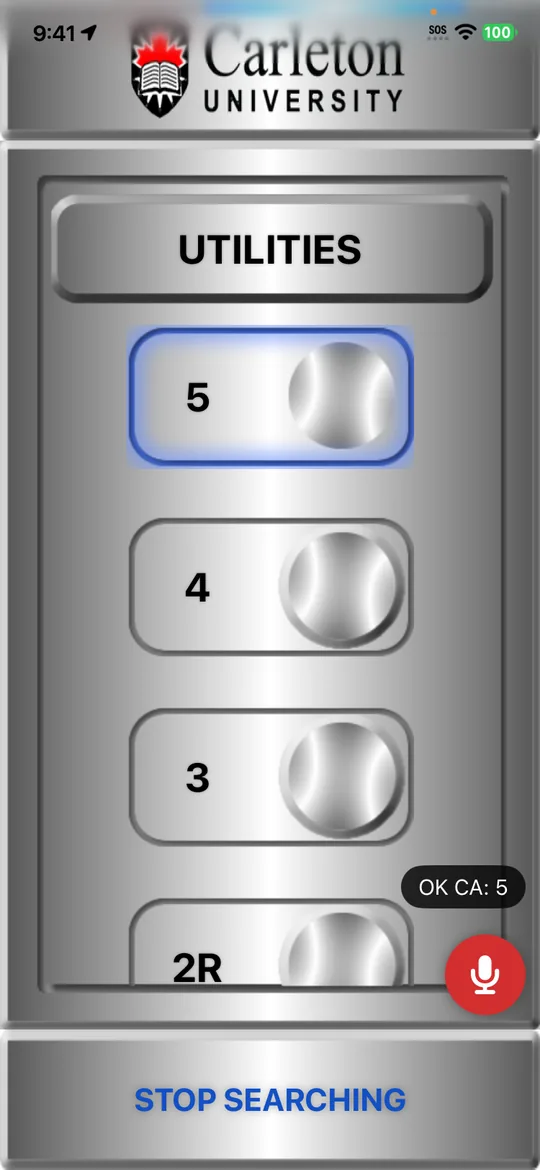
2. Say “5”: floor 5 is pressed
What you can say
Start with “OK CA”, then say one of these. They're grouped by where you are.
“OK CA” …
- Finding buttons
- “search” start looking for buttons near you
- “stop” stop looking
- Outside the elevator
- “up” or “down” call the elevator
- a door's name as shown on screen, for example “entrance”
- Inside the elevator
- a floor for example “5” or “three”
- “floors” show the floor buttons
- “utilities” show door open, door close, phone and alarm
- a button's name for example “door open”
- Paths
- “paths” go to your paths
- a path's name run it (part of the name is enough)
- “stop path” stop the path that's running
- “create path 5” make a path to floor 5 (say any floor)
- Voice control
- “voice off” turn voice control off
Voice control understands English for now, whatever language you choose in CA Secure.
Privacy
Your phone's own speech recognition does the listening. We never receive recordings, and the app's log only notes that a voice command was used.
Still stuck?
In CA Secure, open Settings and tap Contact to send us a message, or email info@contactlessaccess.com.