
Tap Got it to see the next tip, or Skip tips to hide the rest. Each tip shows once.
On the Home screen
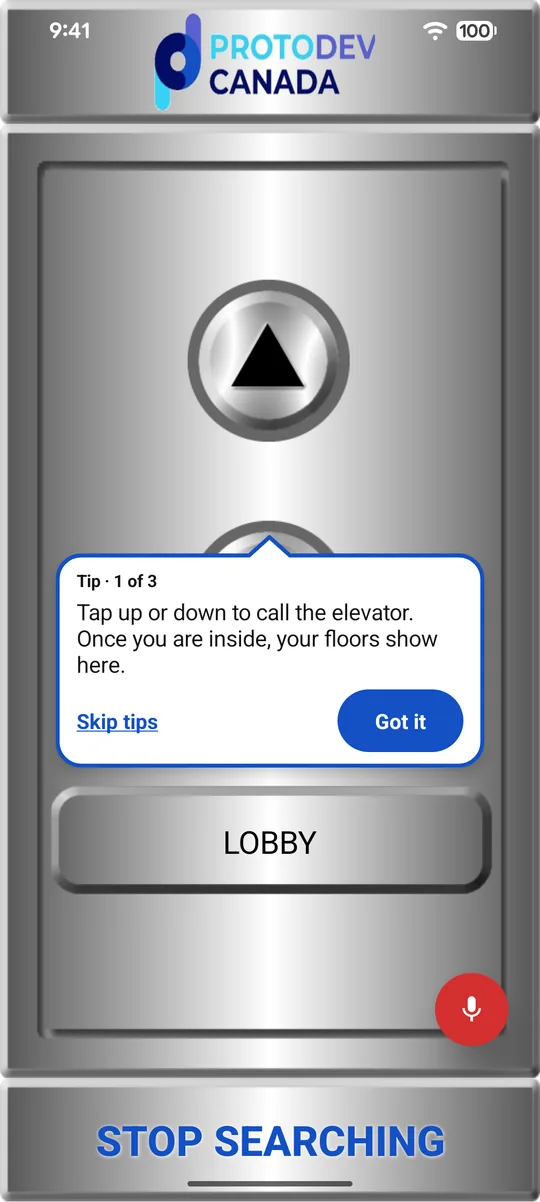
1. Tap up or down to call the elevator 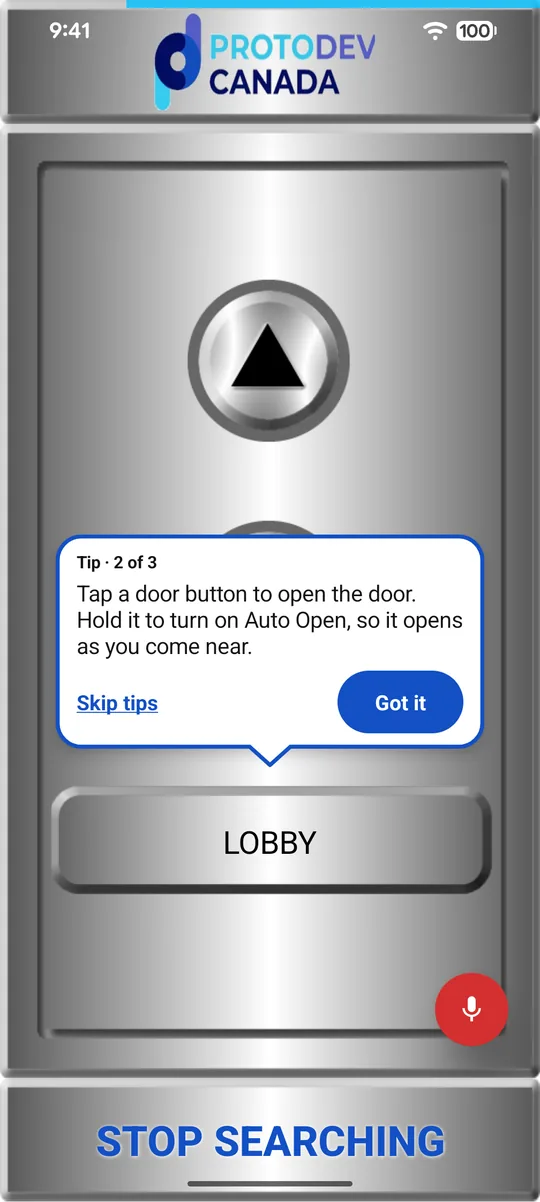
2. Tap a door to open it; hold it for Auto Open 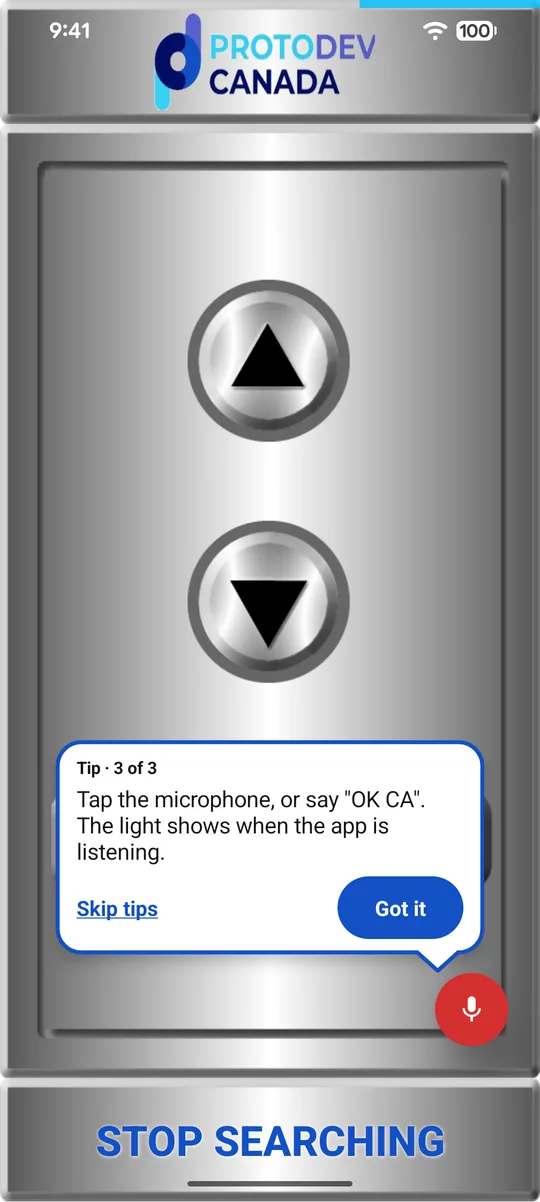
3. Tap the microphone, or say “OK CA” 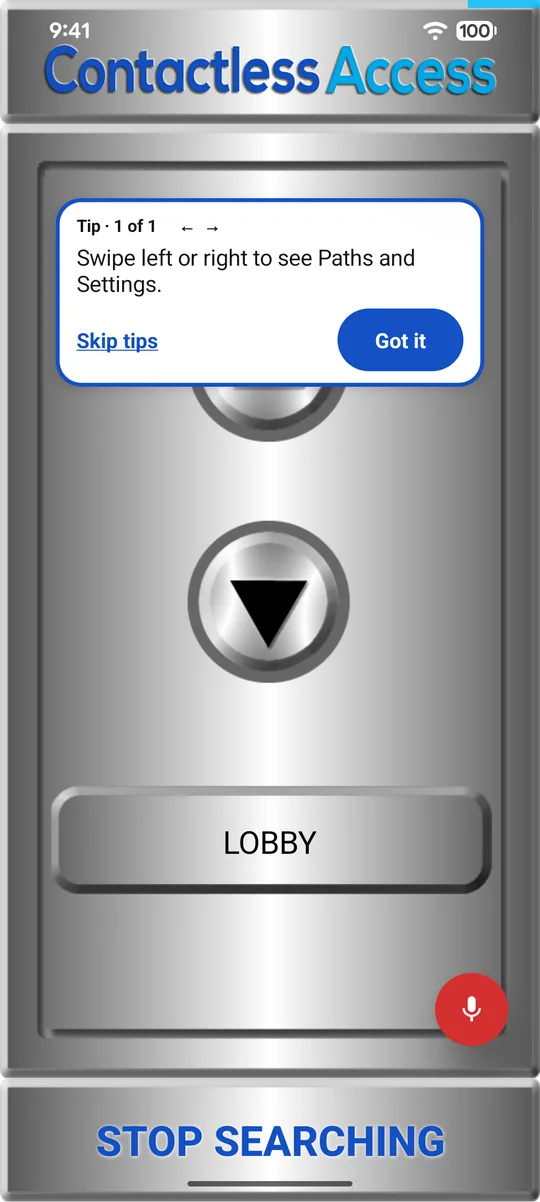
Next visit: swipe for Paths and Settings
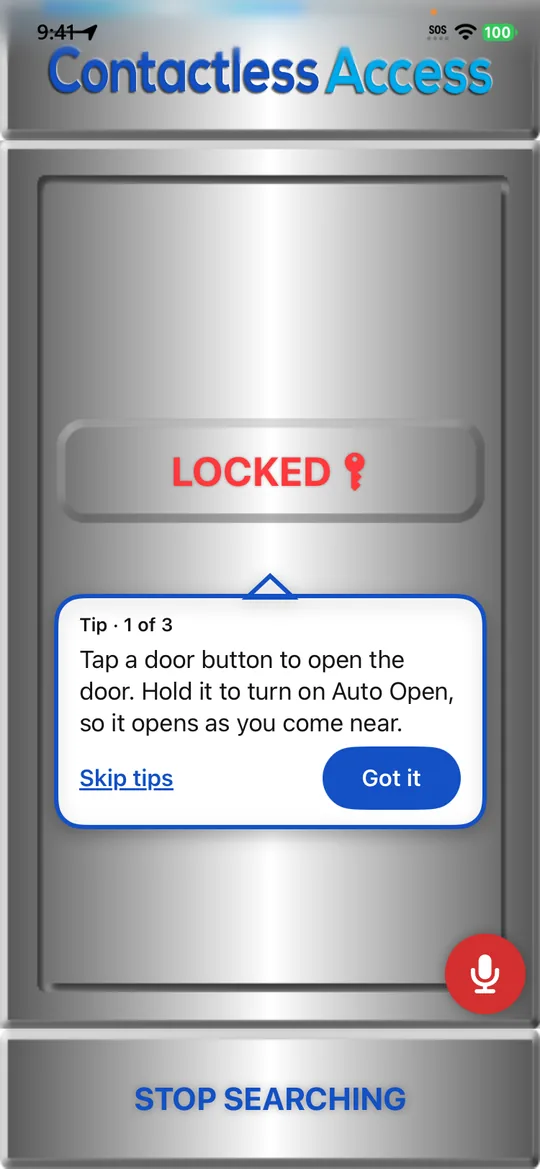
1. Tap a door to open it; hold it for Auto Open 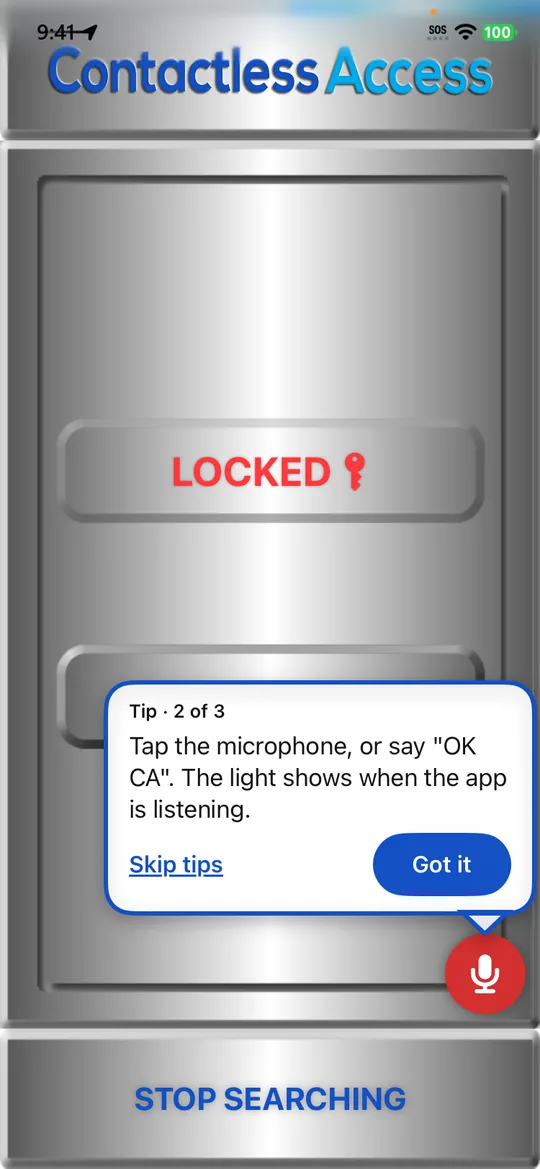
2. Tap the microphone, or say “OK CA” 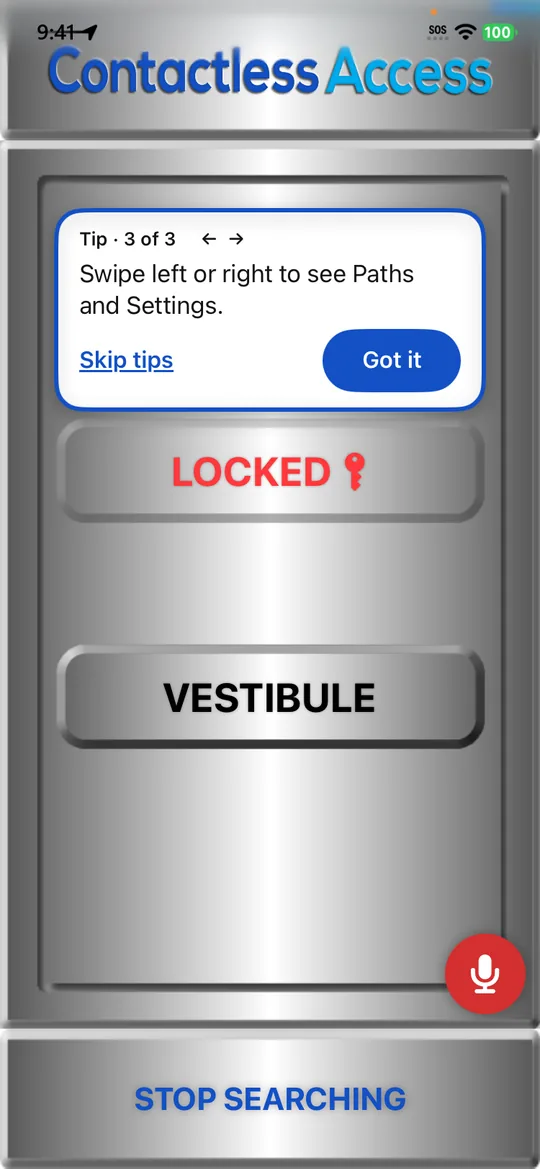
3. Swipe for Paths and Settings
More: Doors and elevators · Voice control
Inside an elevator
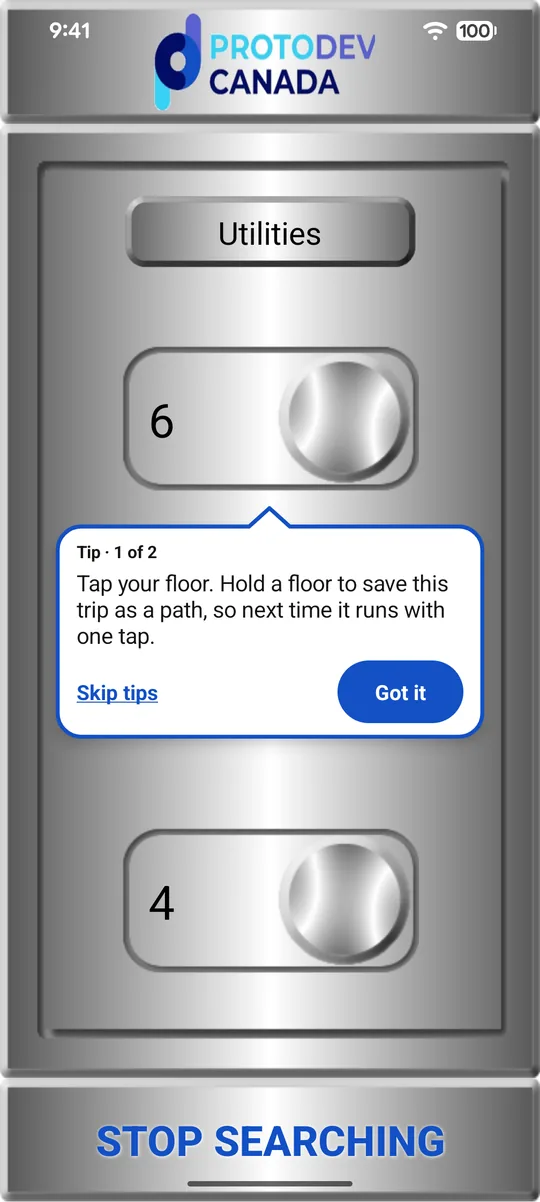
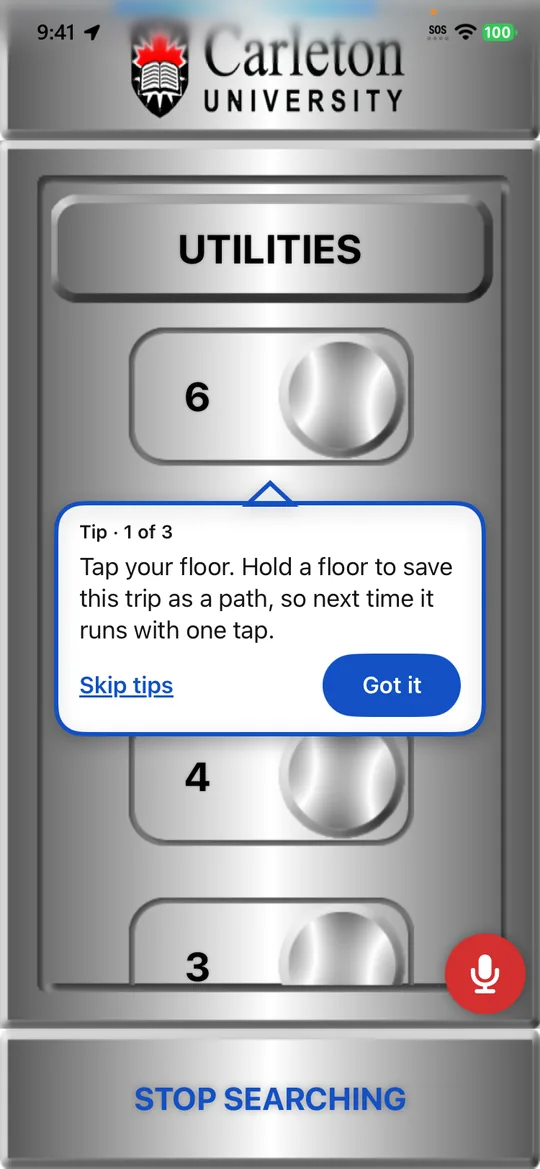
1. Tap your floor; hold it to save a path 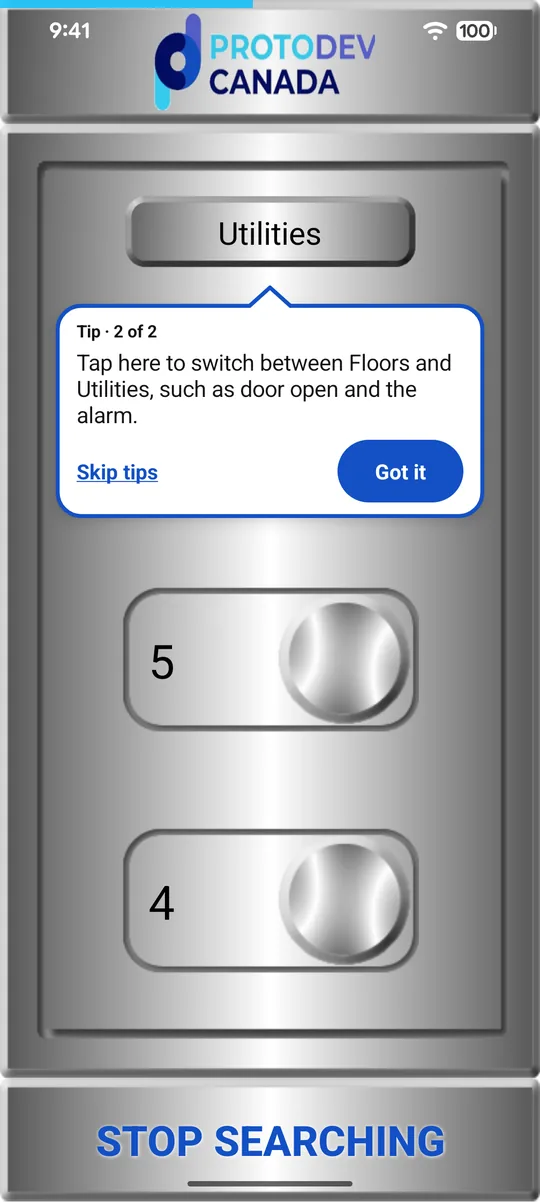
2. Switch between Floors and Utilities
1. Tap your floor; hold it to save a path 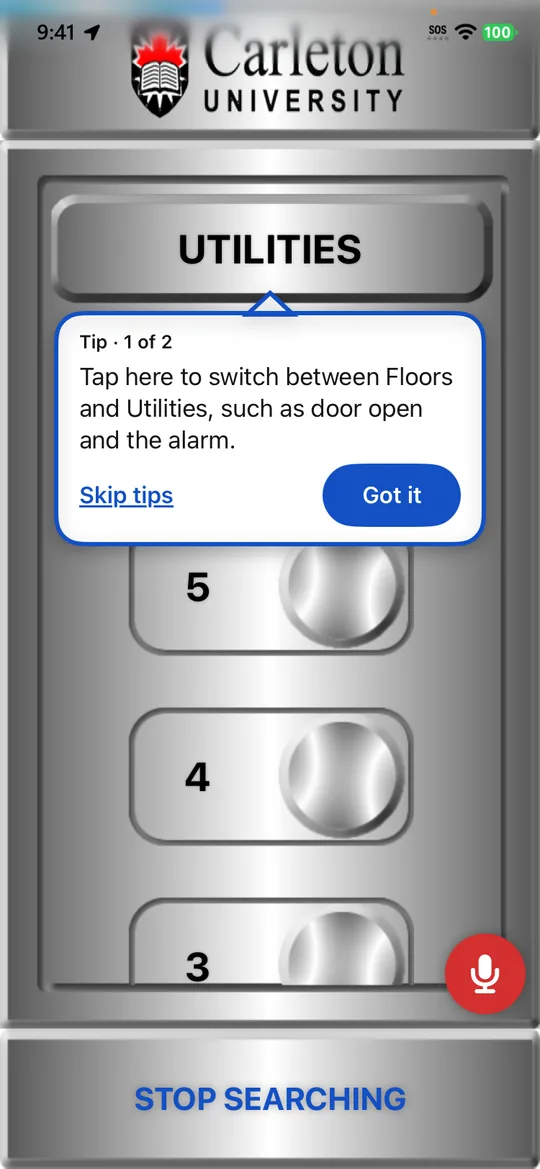
2. Switch between Floors and Utilities 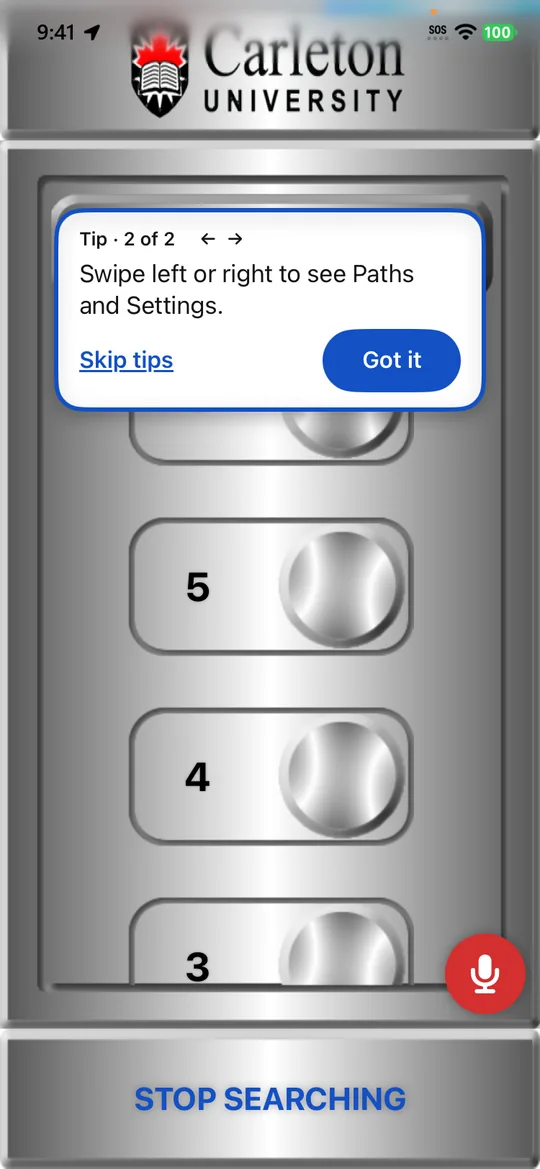
Later visits: swipe for Paths and Settings
More: Doors and elevators · Paths
On the Paths screen
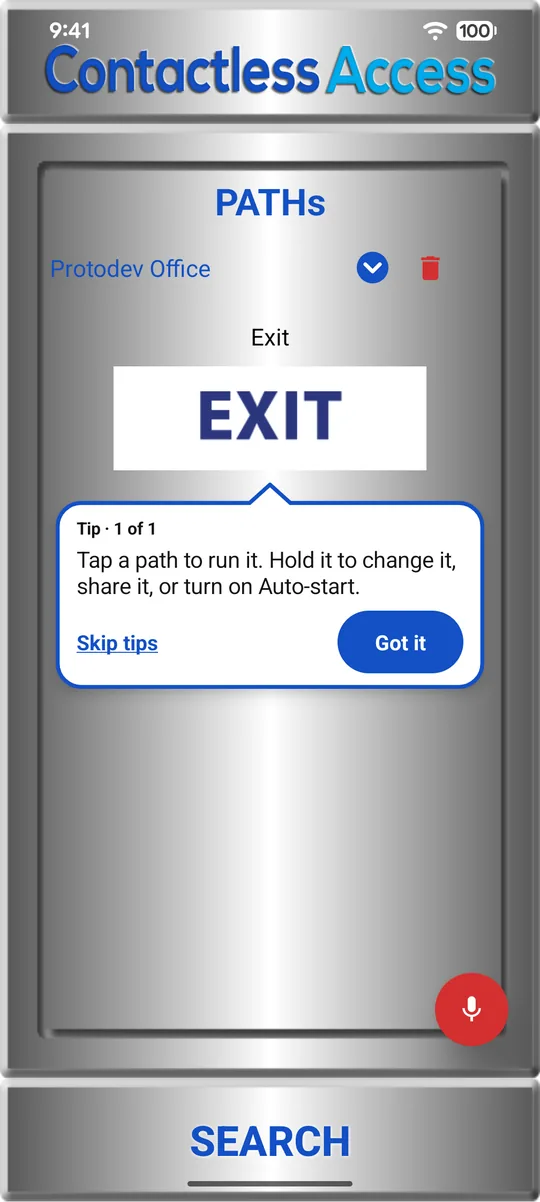
1. Tap a path to run it; hold it to change, share or Auto-start 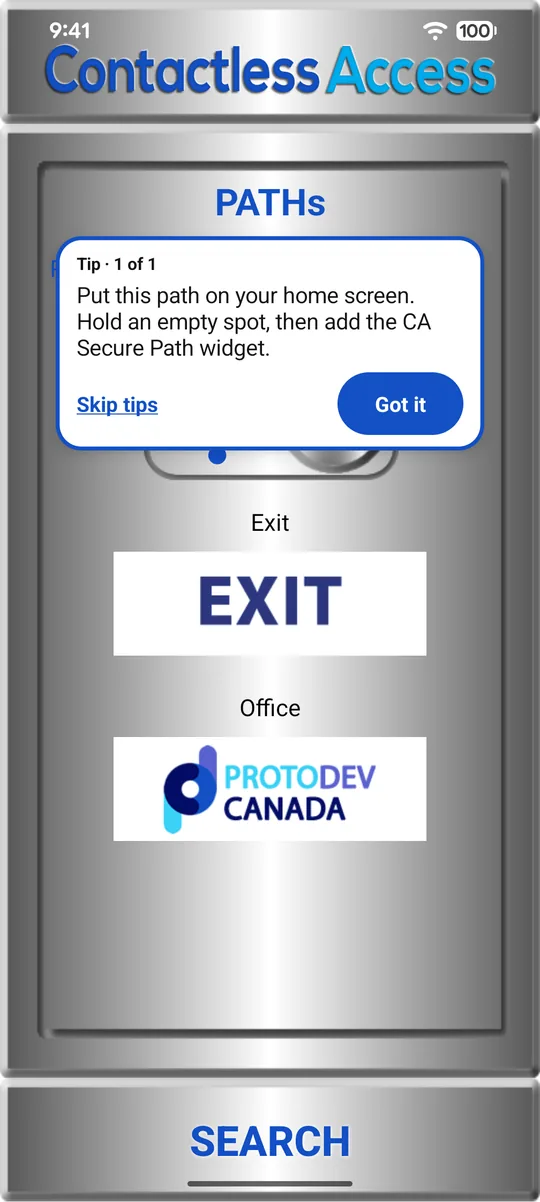
2. Put a path on your home screen
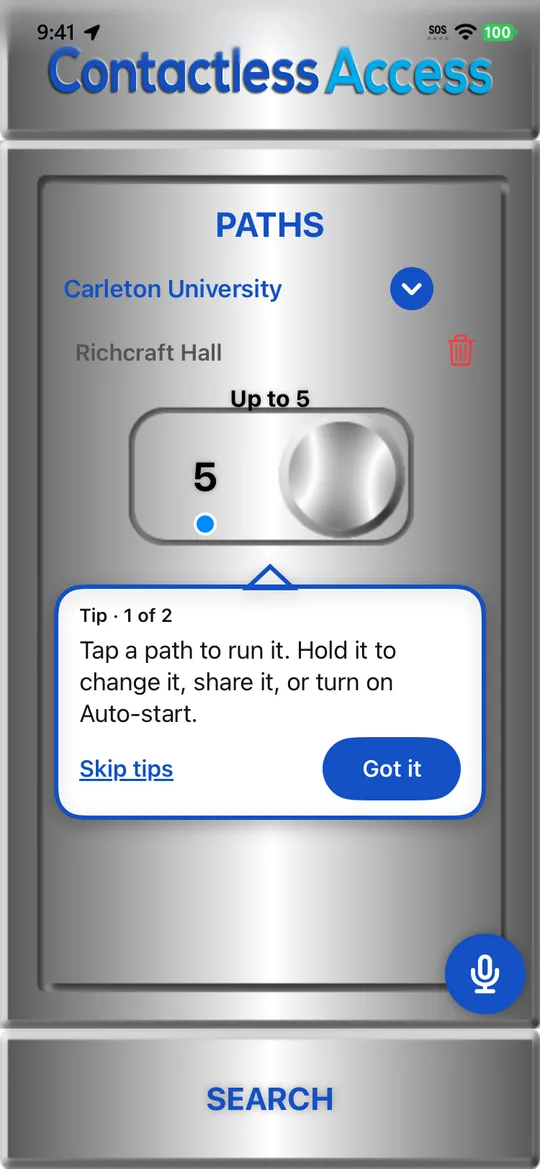
1. Tap a path to run it; hold it to change, share or Auto-start 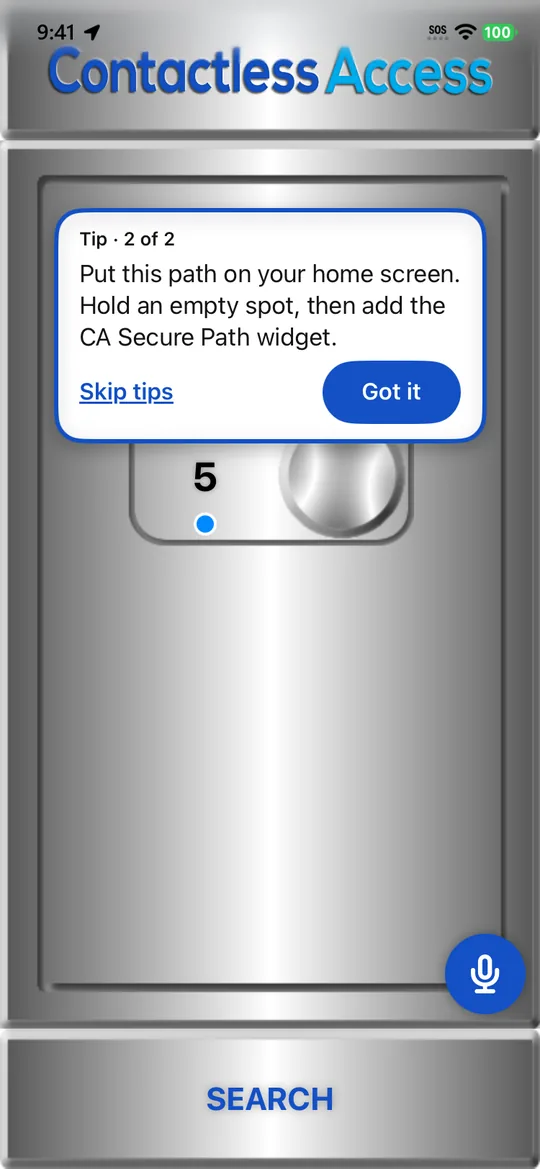
2. Put a path on your home screen
More: Paths · Home-screen widgets
Still stuck?
In CA Secure, open Settings and tap Contact to send us a message, or email help@contactlessaccess.com.