Help β€Ί Secure elevators

Secure elevators

Some buildings have secure floors and secure hall calls that only approved people may use. If your building gives you access, CA Secure presses them too.

What πŸ” and πŸ”‘ mean

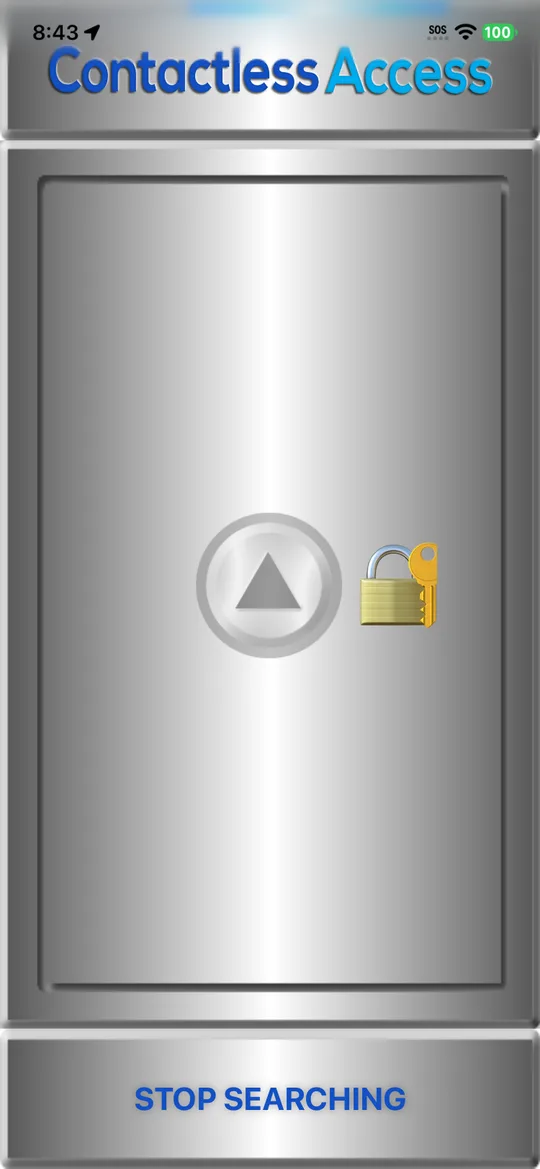
A secure floor or hall call shows πŸ” beside its name when this phone has no access (not yet, or not any more), and πŸ”‘ when it has. Tapping one with πŸ” doesn't press it: the app tells you it's secure.
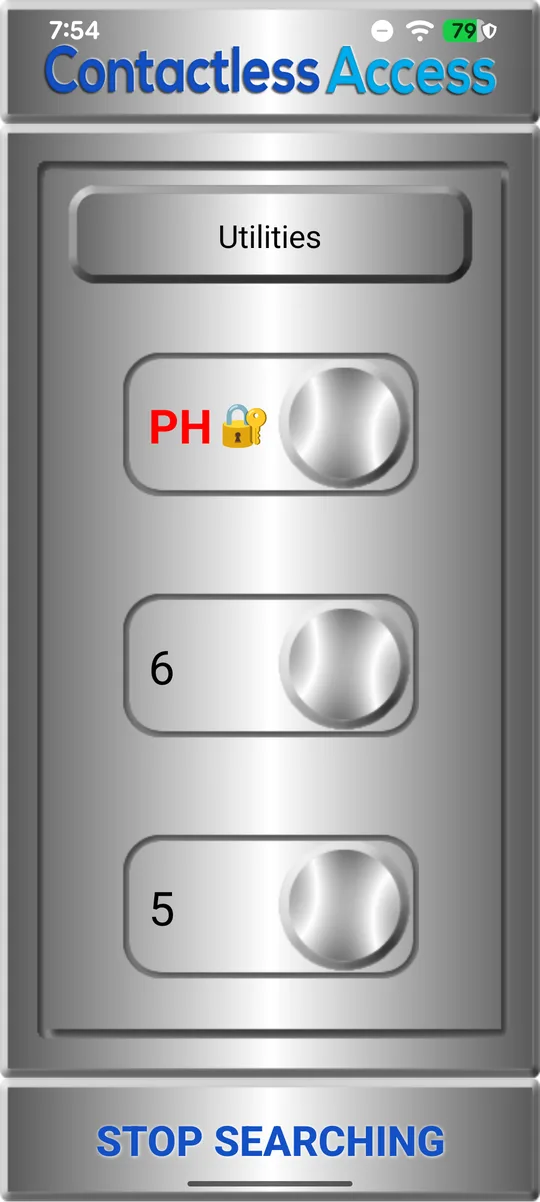
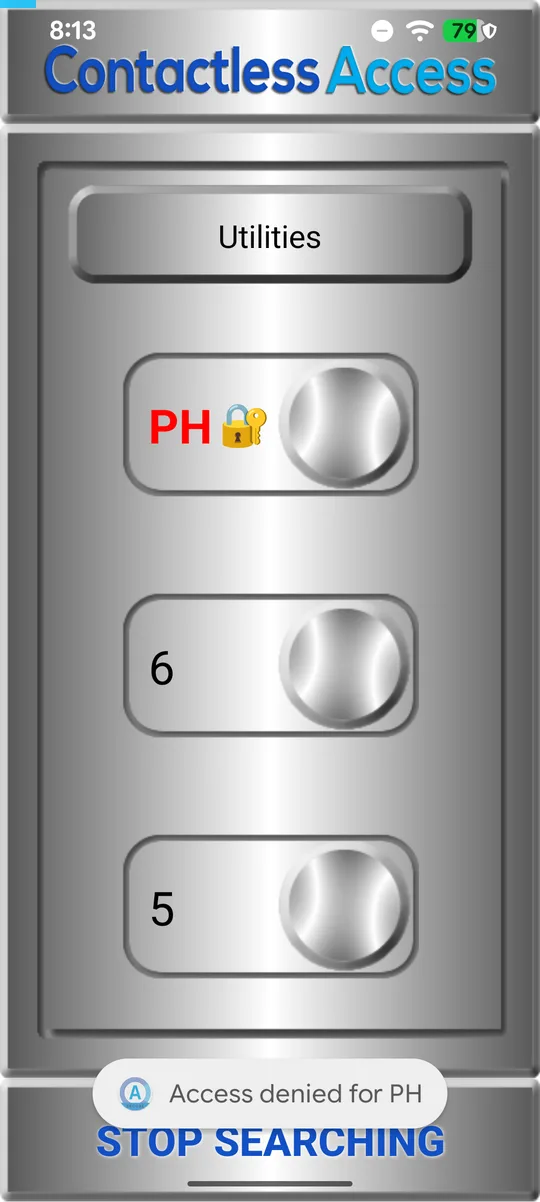
  1. Inside the elevator: floor buttons PH, 6 and 5, with πŸ” beside PH.
    1. PH shows πŸ”
  2. After a tap on the locked PH button: Access denied for PH.
    2. A tap doesn't press it
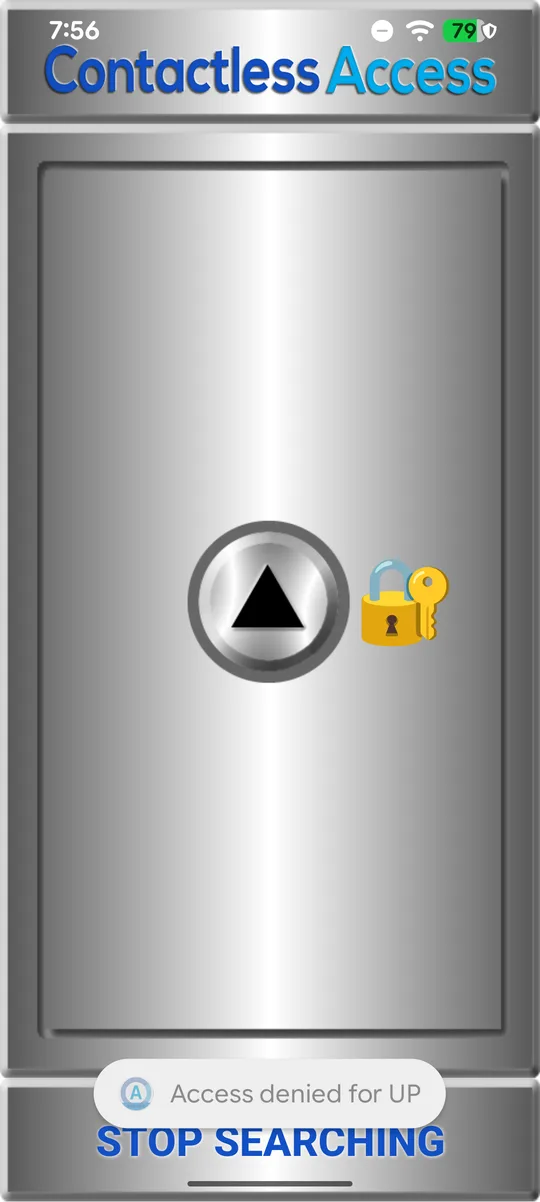
  3. At a floor, after a tap on the locked UP hall call: Access denied for UP.
    3. Secure hall calls too
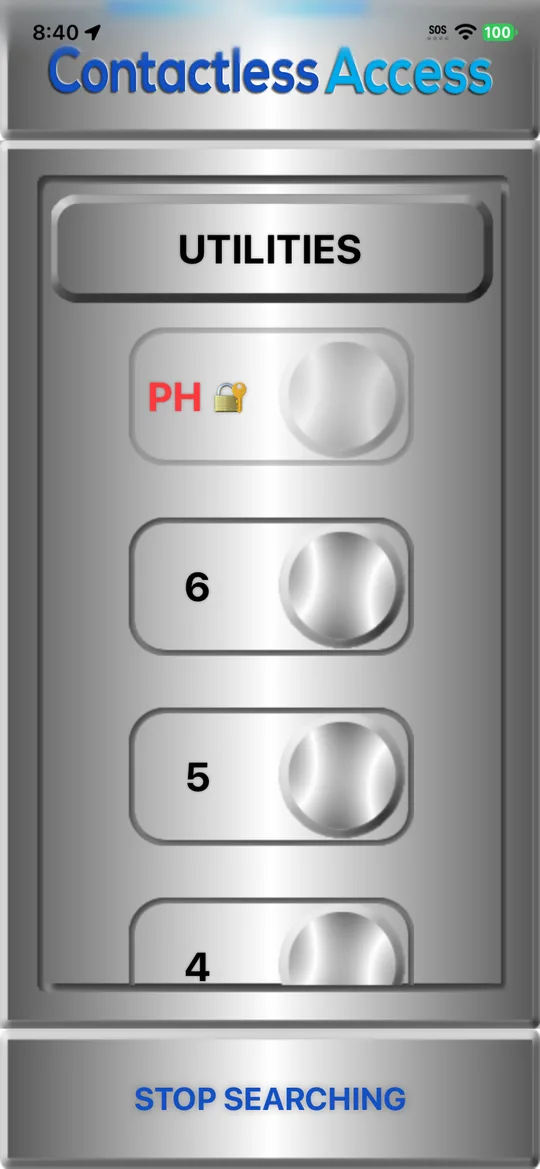
  1. Inside the elevator on iPhone: floor buttons PH, 6, 5 and 4, with πŸ” beside PH.
    1. PH shows πŸ”
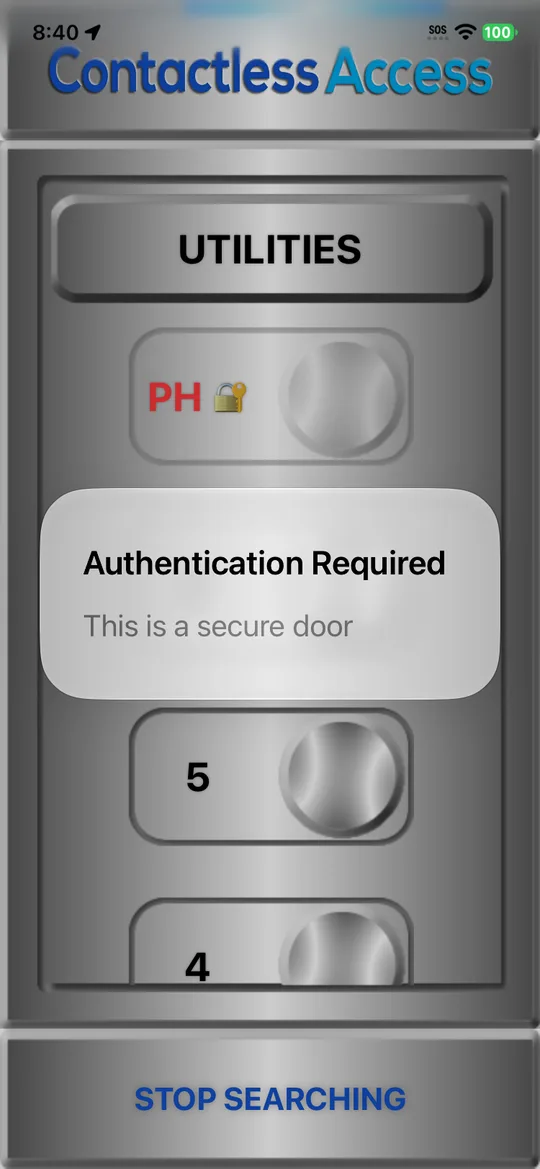
  2. After a tap on the locked PH button, a message says it's secure.
    2. A tap doesn't press it
  3. At a floor on iPhone: the up hall call button with πŸ” beside it.
    3. Secure hall calls too

Add your access

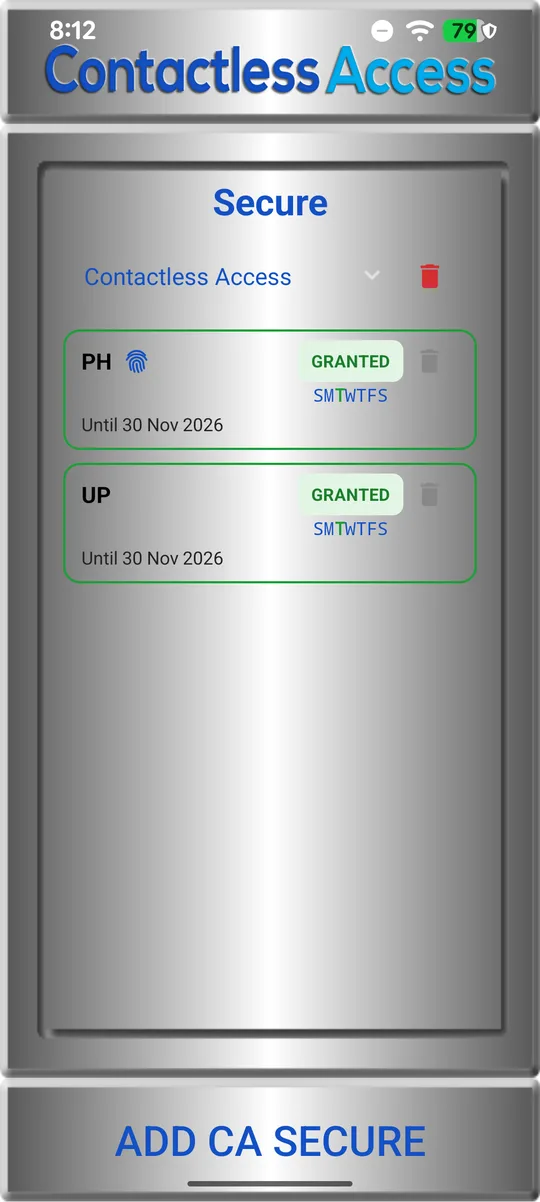
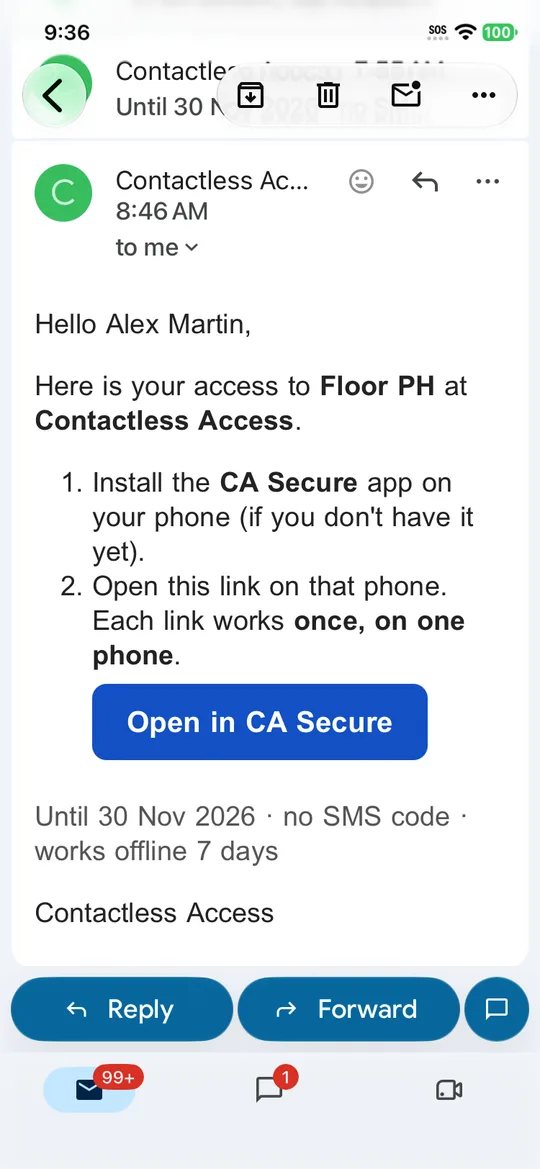
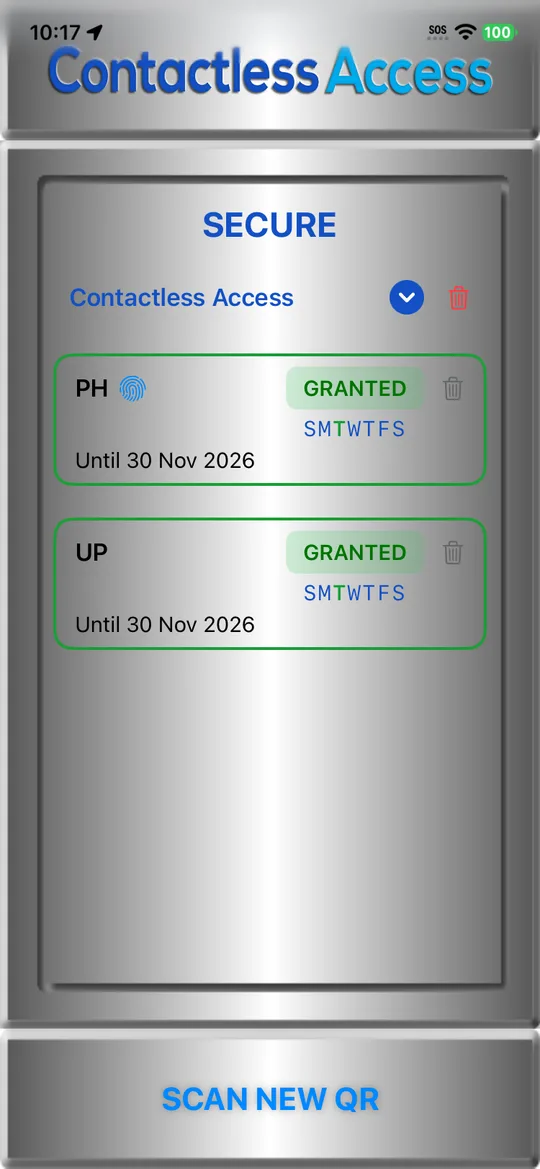
Your building's security team sends you an email with a link. On the phone you'll use, tap Open in CA Secure. The link works once, on one phone. Your floors and hall calls then appear on the Secure screen, with their last day and the days of the week. For QR codes and more, see Secure doors.
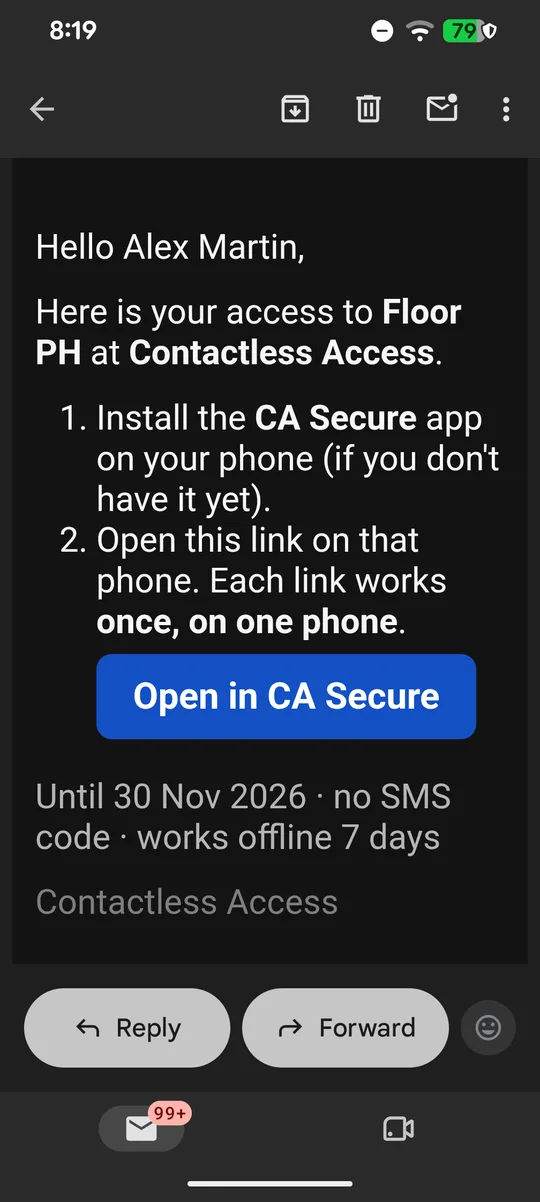
  1. An access email: Hello Alex Martin, here is your access to Floor PH, with an Open in CA Secure button.
    1. Tap Open in CA Secure
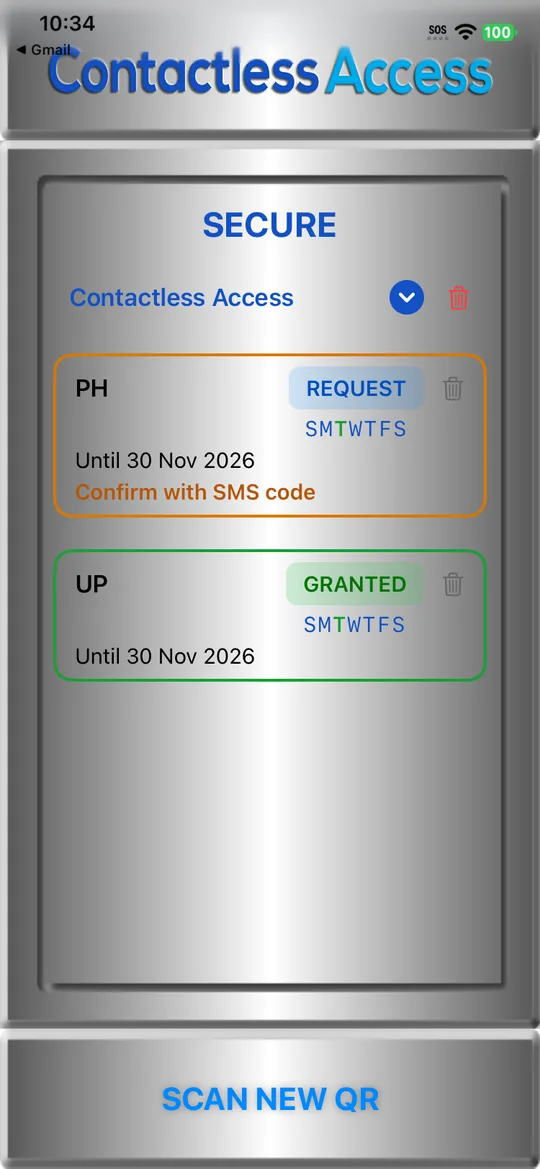
  2. The Secure screen: PH and UP both GRANTED until 30 Nov 2026, with the days of the week.
    2. On the Secure screen
  1. An access email on iPhone: here is your access to Floor PH, with an Open in CA Secure button.
    1. Tap Open in CA Secure
  2. The Secure screen on iPhone: PH and UP both GRANTED until 30 Nov 2026, with the days of the week.
    2. On the Secure screen

Confirm with your SMS code

If a card is amber and says Confirm with SMS code, tap REQUEST and enter the 6-digit code from the text message, as for a secure door (see Get your code).
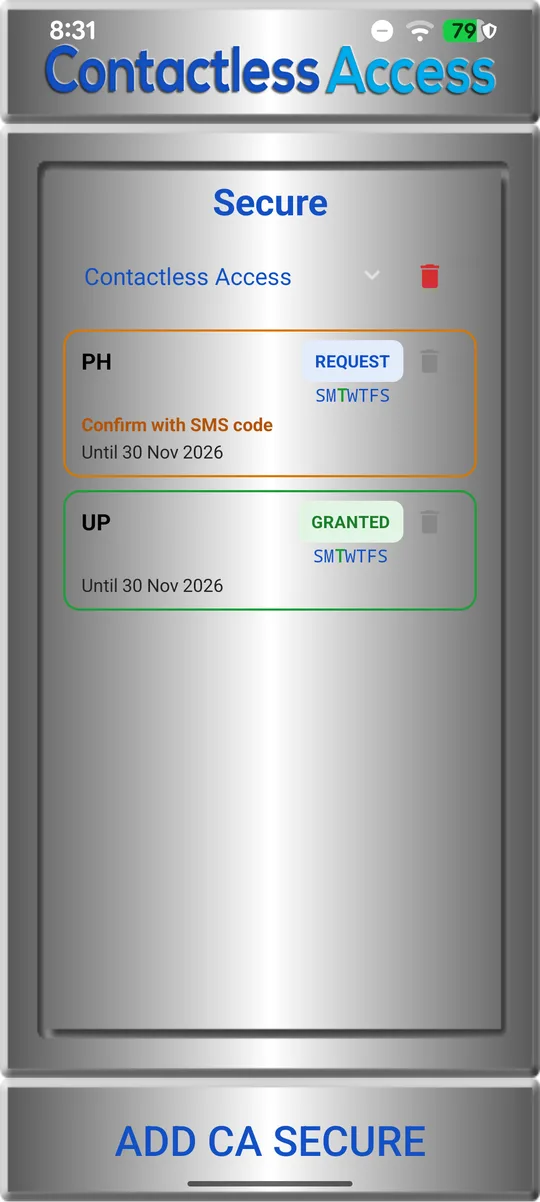
  1. The PH card in amber with REQUEST and Confirm with SMS code; UP is GRANTED.
    PH waits for your SMS code
  1. The PH card in amber with REQUEST and Confirm with SMS code; UP is GRANTED.
    PH waits for your SMS code

Press a secure floor

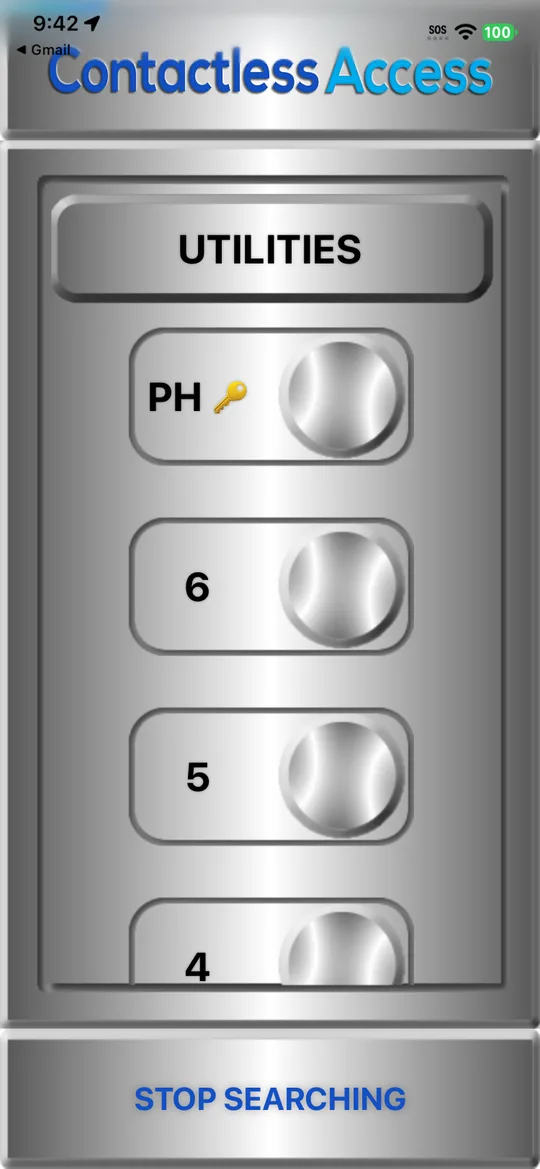
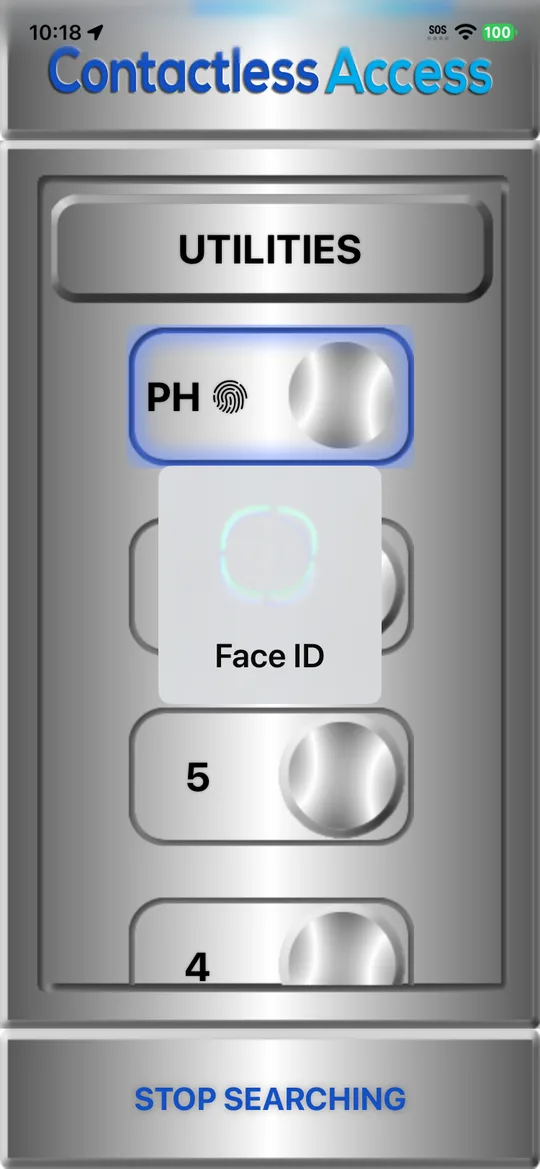
With πŸ”‘, tap the floor like any other. If your building asked for it, confirm it's you with your fingerprint, Face ID or your phone's PIN each time.
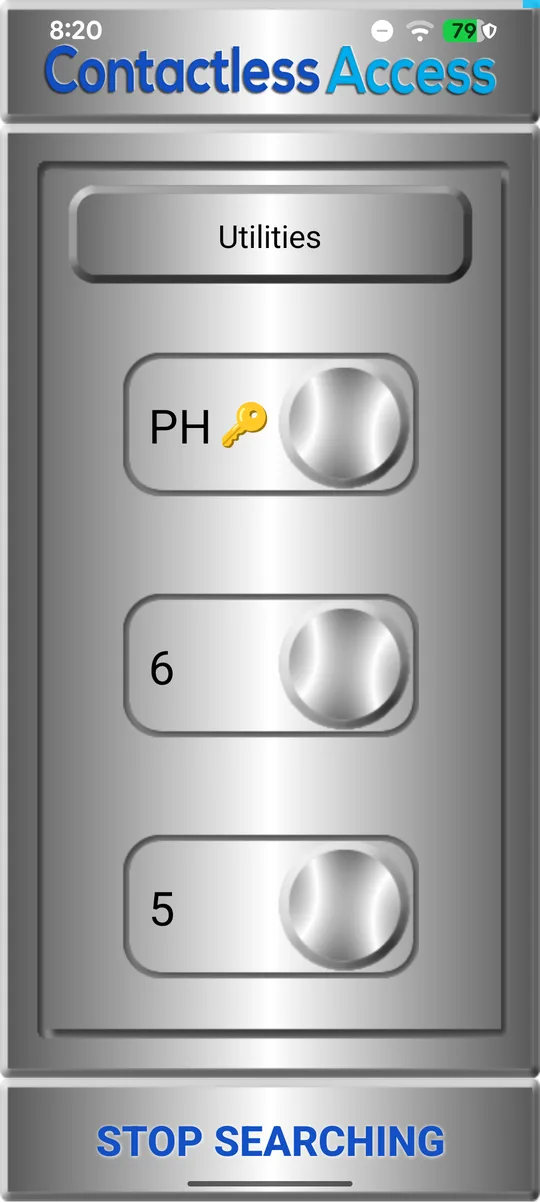
  1. Inside the elevator: PH with πŸ”‘ beside it.
    1. PH shows πŸ”‘: tap it
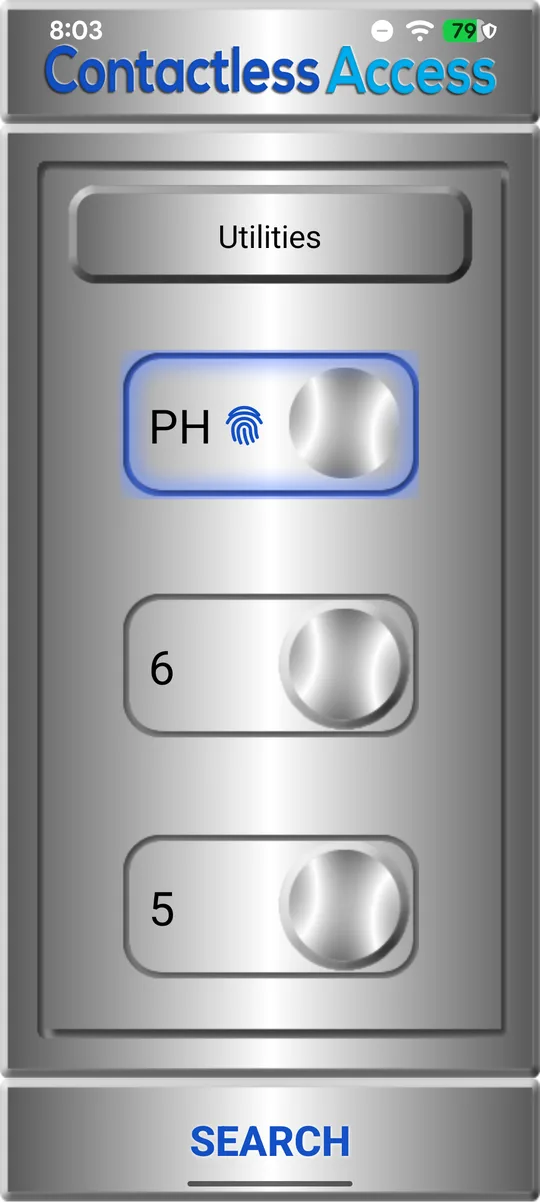
  2. PH, marked with a fingerprint, lit up after the fingerprint was accepted.
    2. After your fingerprint
  1. Inside the elevator on iPhone: PH with πŸ”‘ beside it.
    1. PH shows πŸ”‘: tap it
  2. Face ID checking before PH is pressed.
    2. Confirm with Face ID

PATHs with secure floors

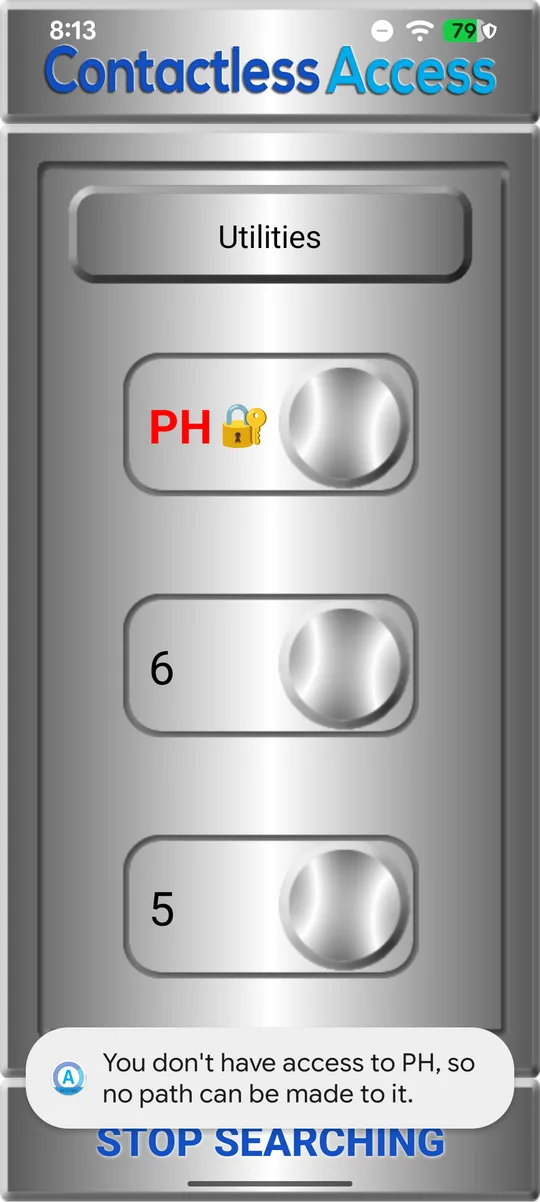
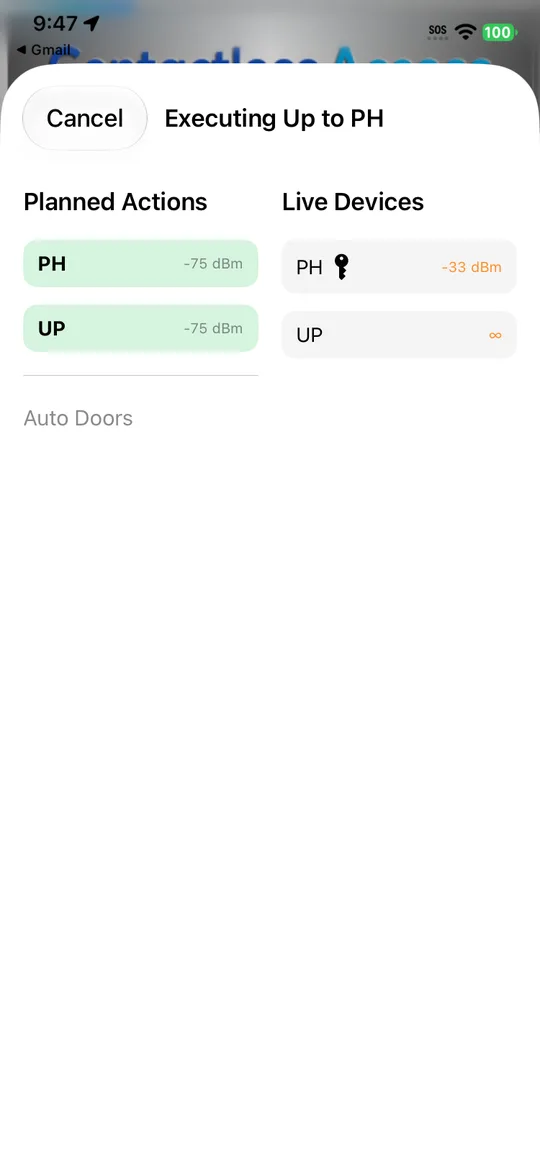
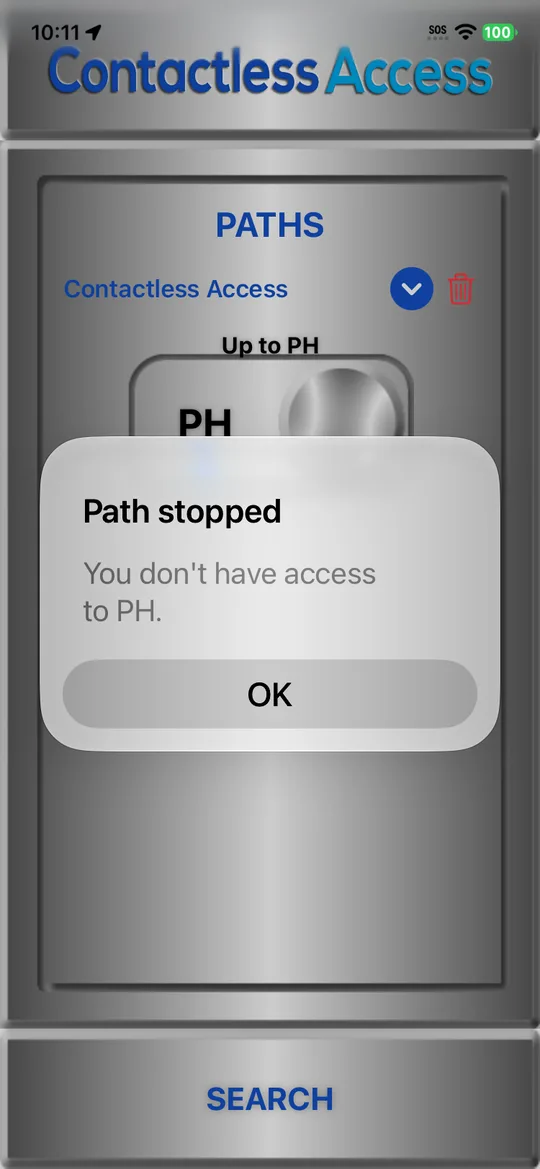
A PATH can call the elevator and press a secure floor for you, as long as this phone has access. CA Secure won't make a PATH to a floor you can't use, and a PATH stops if it reaches a floor you no longer have access to.
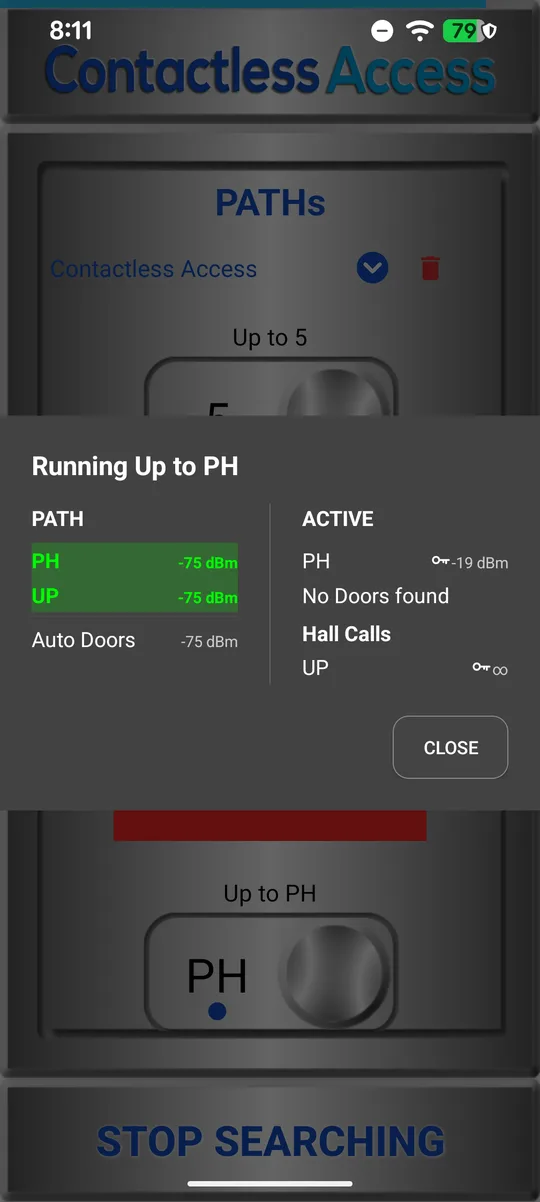
  1. The PATH Up to PH running: PH and UP both done.
    1. Up to PH, with the keys
  2. You don't have access to PH, so no path can be made to it.
    2. No access, no PATH
  1. Executing Up to PH: PH and UP planned, PH found with its key.
    1. Up to PH, with the keys
  2. Path stopped. You don't have access to PH.
    2. The PATH stops

Paused or withdrawn

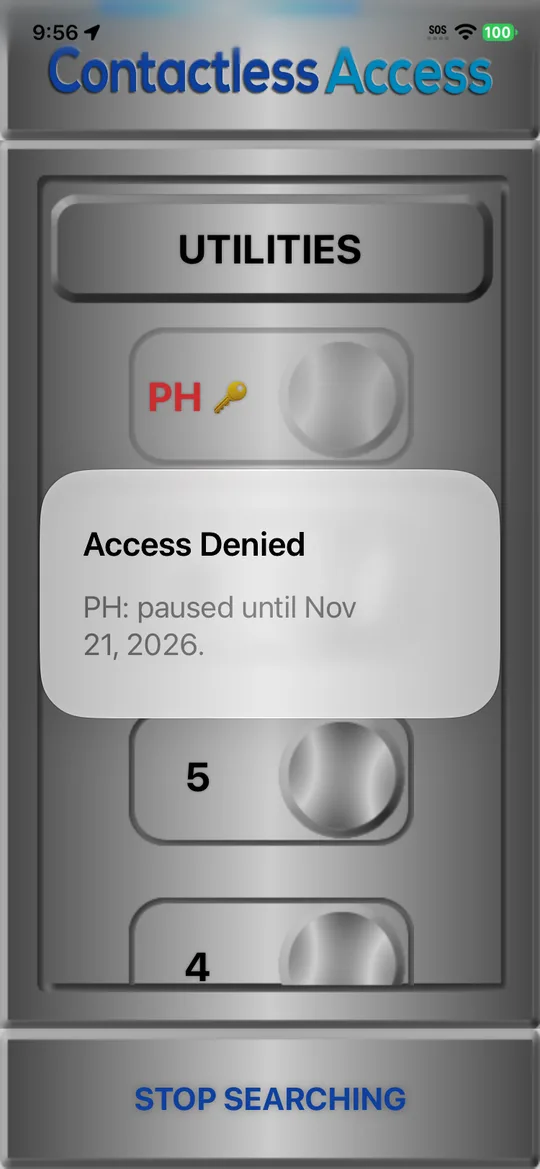
Paused: the card says PAUSED and until when. The floor works again after that date.

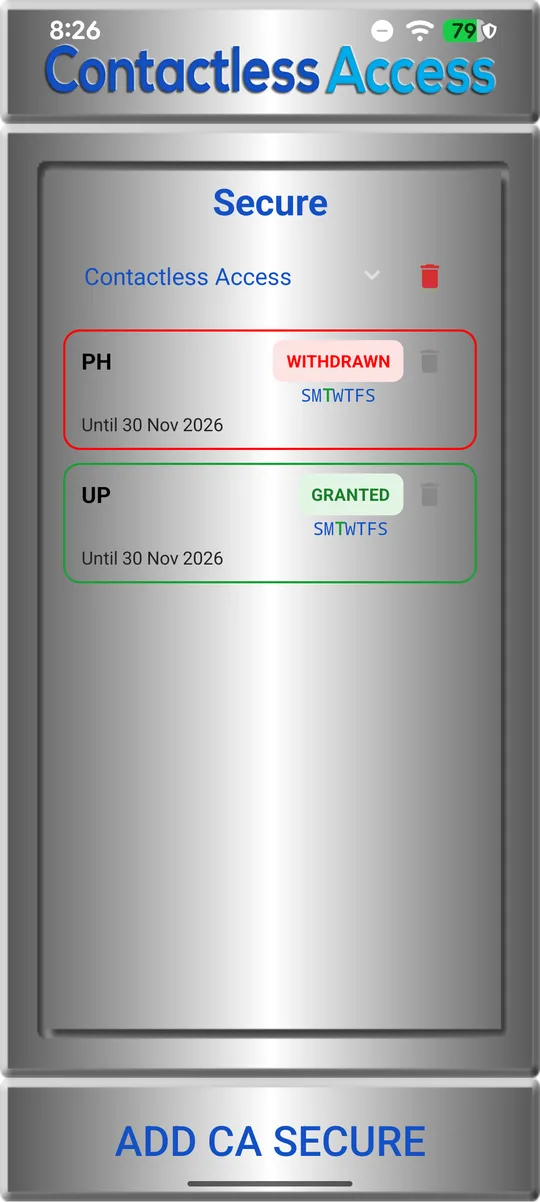
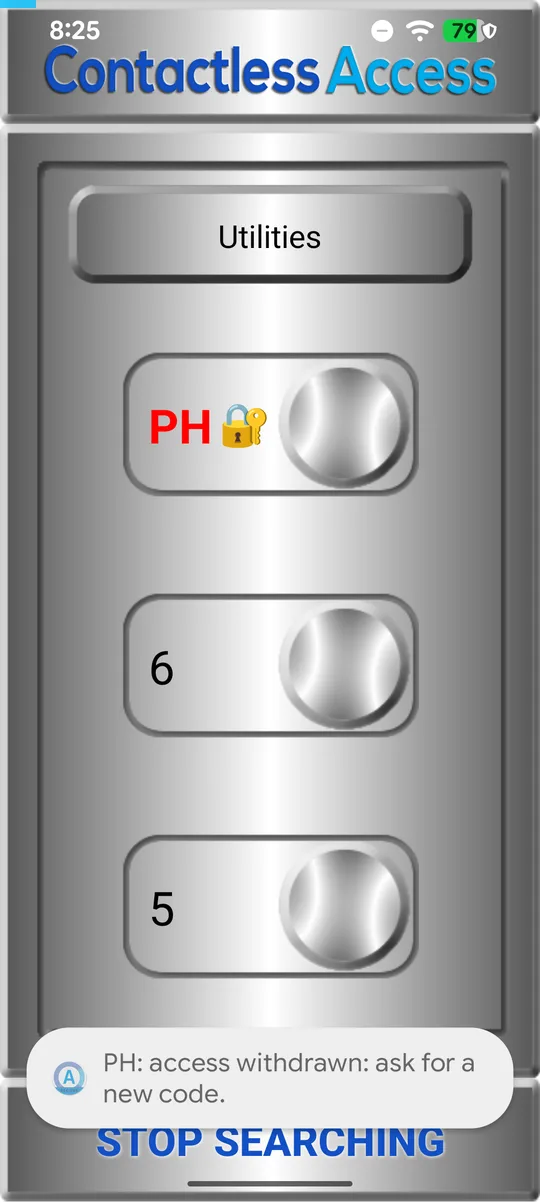
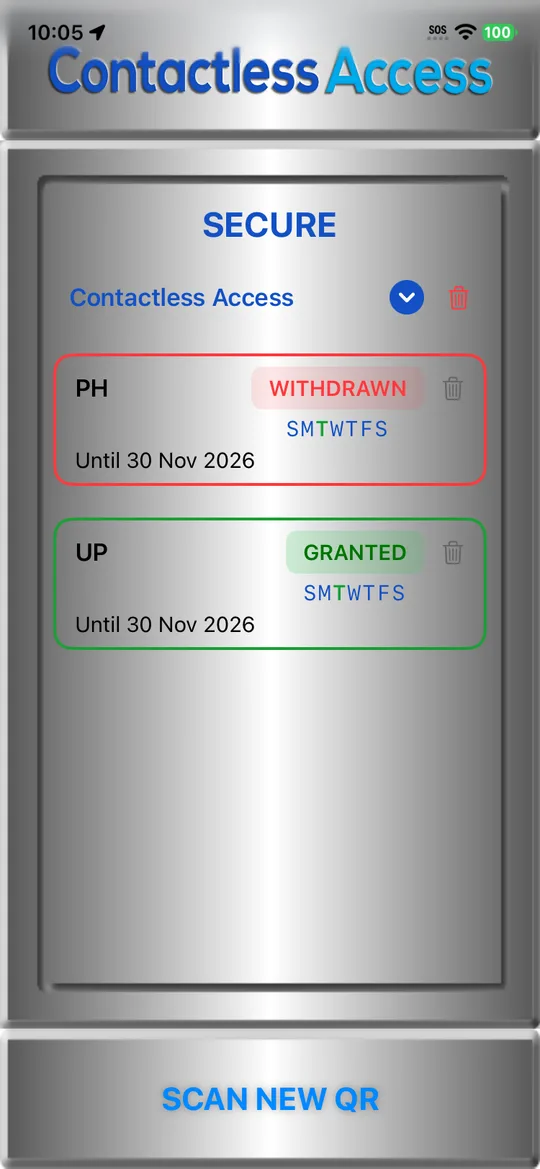
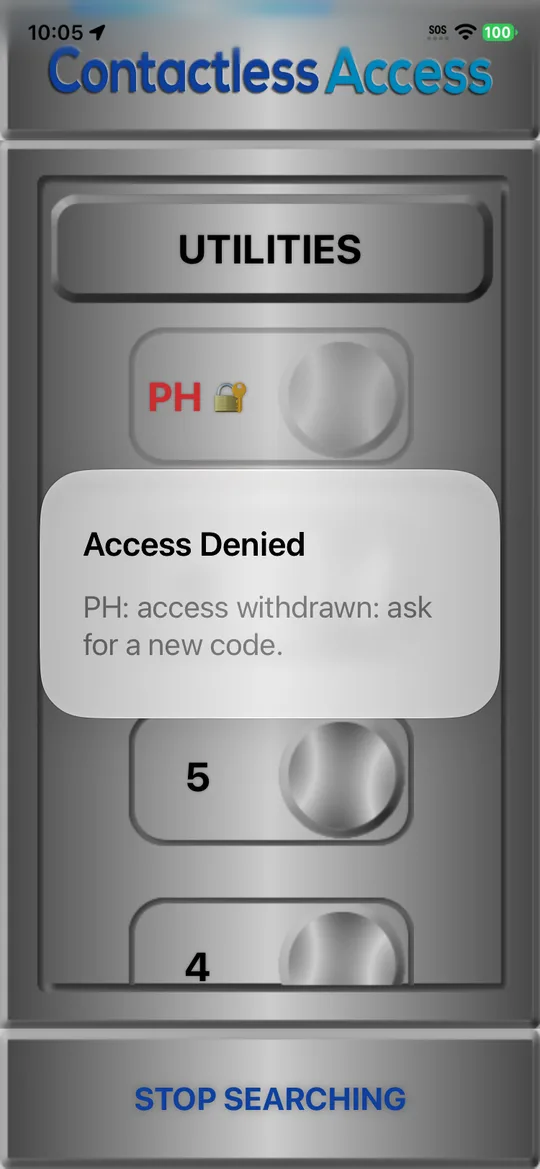
Withdrawn: the card says WITHDRAWN and the floor shows πŸ” again. Ask your building for a new access.
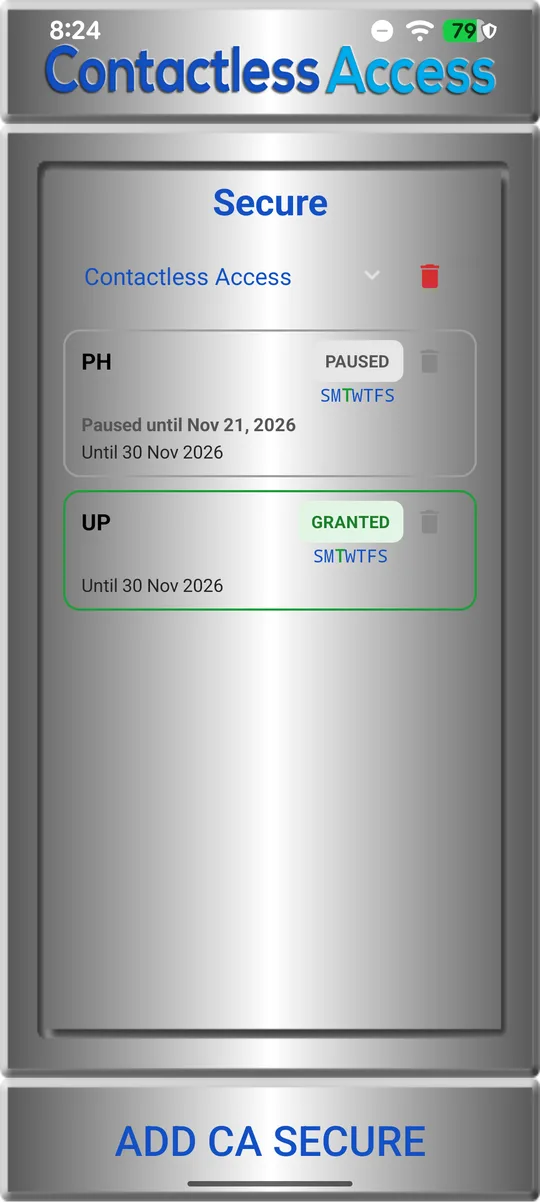
  1. The PH card marked PAUSED, paused until Nov 21, 2026; UP is still GRANTED.
    1. Paused until a date
  2. The PH card in red, marked WITHDRAWN; UP is still GRANTED.
    2. Withdrawn
  3. PH with πŸ” again: PH: access withdrawn: ask for a new code.
    3. Ask for a new access
  1. A tap on PH: Access Denied, PH: paused until Nov 21, 2026.
    1. Paused until a date
  2. The PH card in red, marked WITHDRAWN; UP is still GRANTED.
    2. Withdrawn
  3. A tap on PH: Access Denied, PH: access withdrawn: ask for a new code.
    3. Ask for a new access

With a screen reader

TalkBack and VoiceOver say whether a secure floor is locked, for example β€œPH, locked”. More in Accessibility settings.
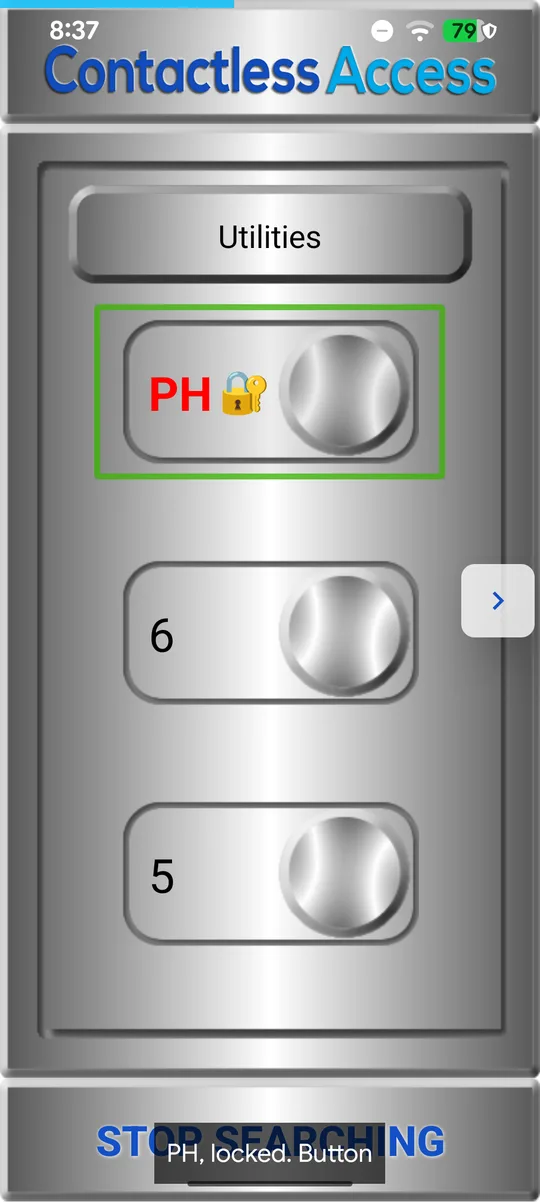
  1. TalkBack on: PH with πŸ” is selected and TalkBack reads PH, locked. Button.
    TalkBack: β€œPH, locked”
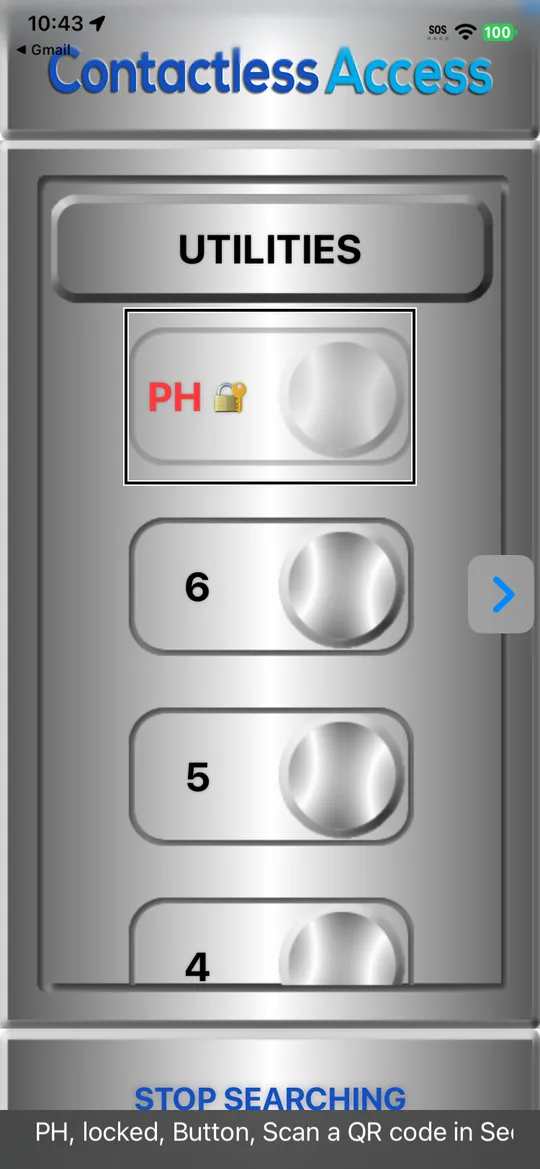
  1. VoiceOver on: PH with πŸ” is selected and VoiceOver reads PH, locked, Button.
    VoiceOver: β€œPH, locked”

Still stuck?

In CA Secure, open Settings and tap Contact to send us a message, or email help@contactlessaccess.com.